
Import a broker statement on mobile
Choose a trade statement file, append or replace as needed, and check which trades the app imported.
Open the menu in Order History
Export your fills from your broker and save the file to your phone. Open Order History in iTradeTrainer and tap the three dots at the top right.
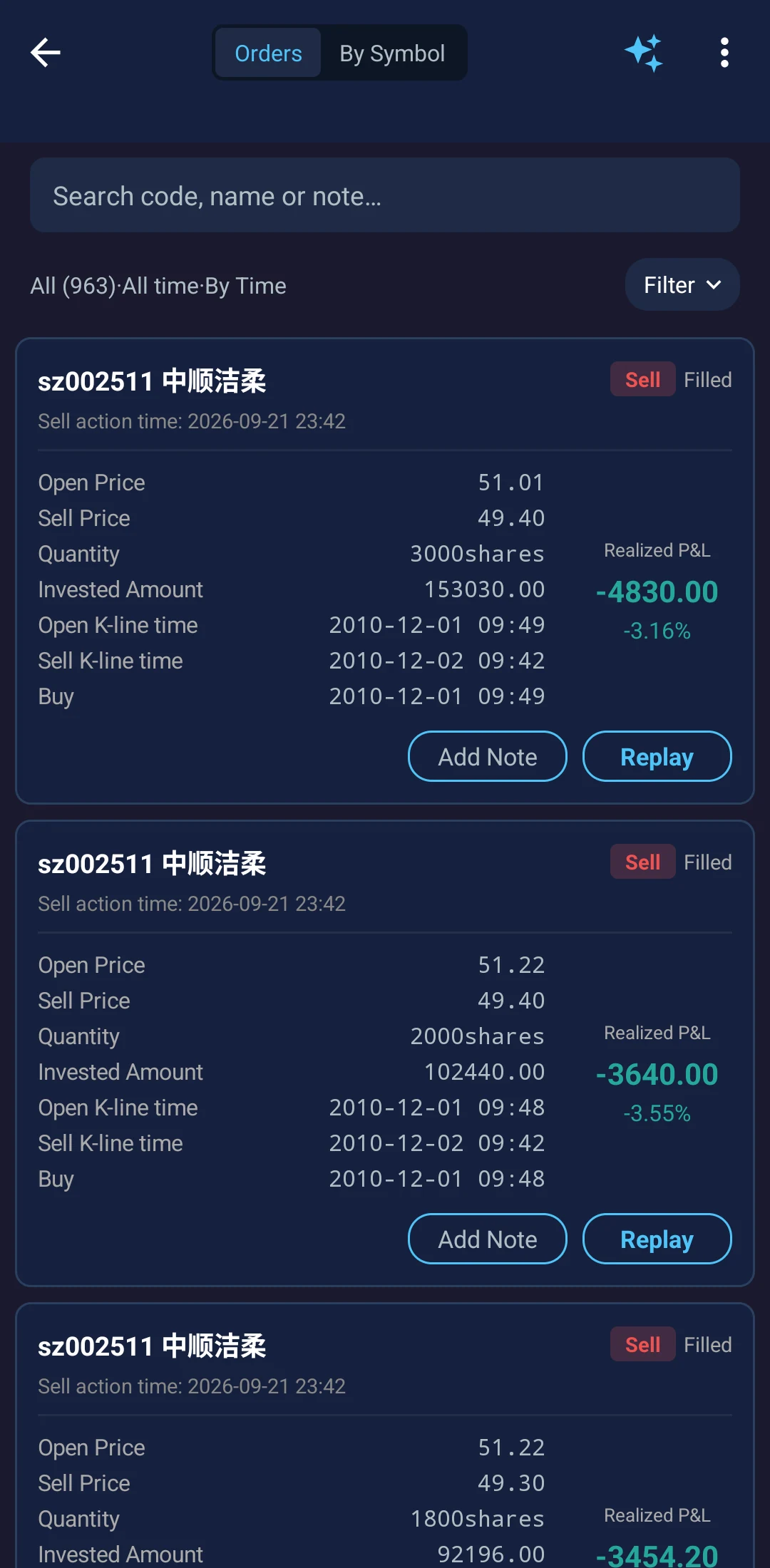
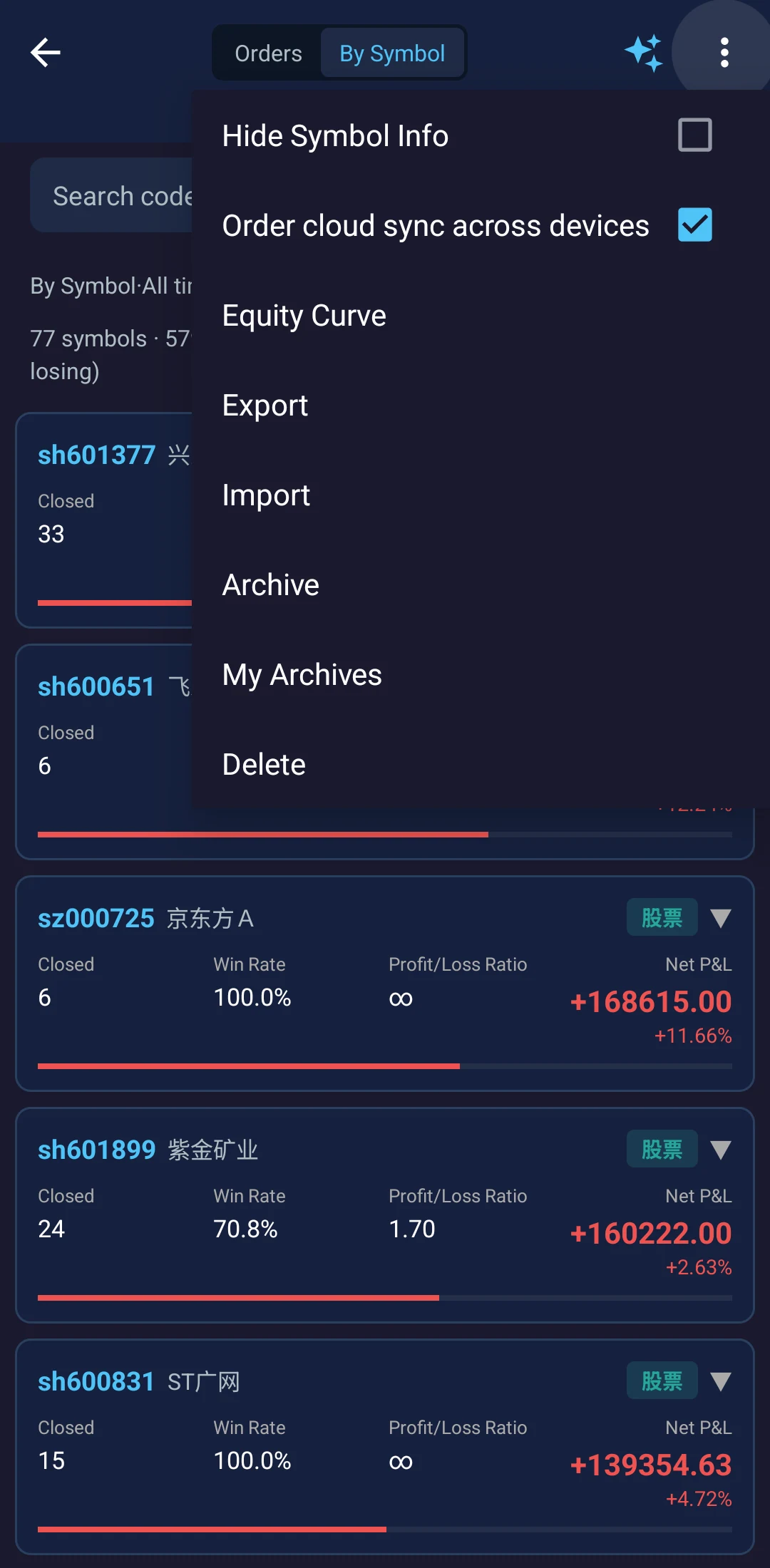
Choose the statement saved on your phone
Select Import in the menu, then open the Excel or CSV file in your phone’s file picker.
Choose how to merge the file
If Import Options appears, choose Append to preserve existing orders and skip duplicates. Replace overwrites the current orders, so save an archive first if you want to keep them.
Check the import report
Review the trade count, unmatched symbols, remaining open positions, and warnings. Open positions left over from matching the trades appear in the report. To verify the records that were imported, filter the Orders tab by instrument or date. If a symbol did not match, check its code and market in the source file.