
Find and review past orders on mobile
Search and filter order history, write a trade note, and revisit a trade on the chart.
Open Order History from the home screen
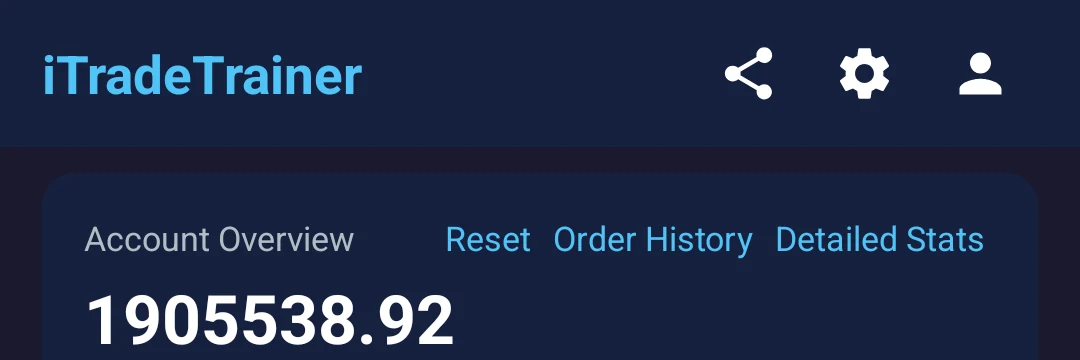
In the Account Overview card on the home screen, tap Order History at the upper right, between Reset and Detailed Stats.
Switch to the Orders tab
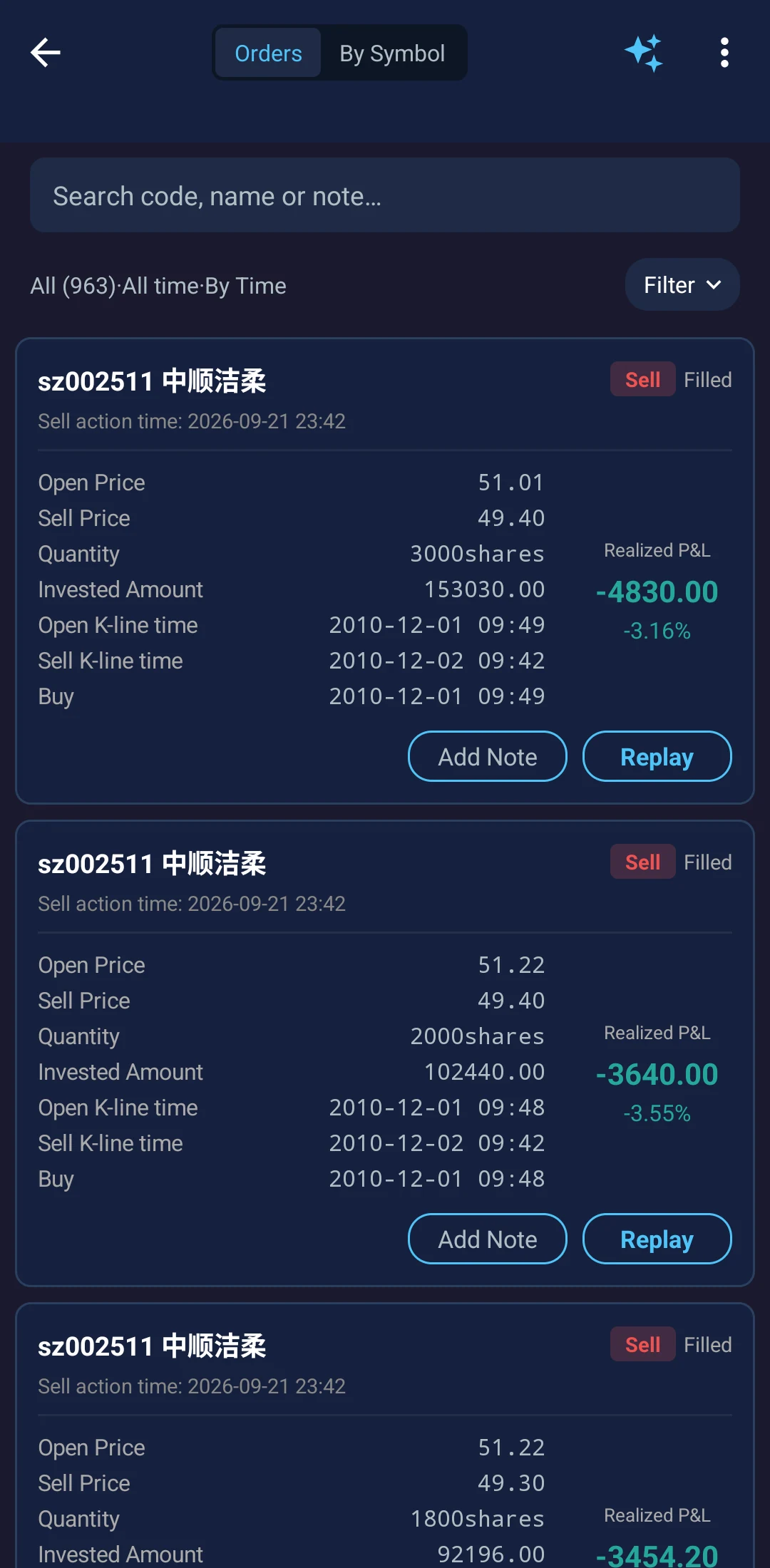
Tap Orders, the left tab at the top. Each card lists the order status, prices, quantity, and timestamps. A closing trade also shows realized profit or loss.
Search by symbol or note
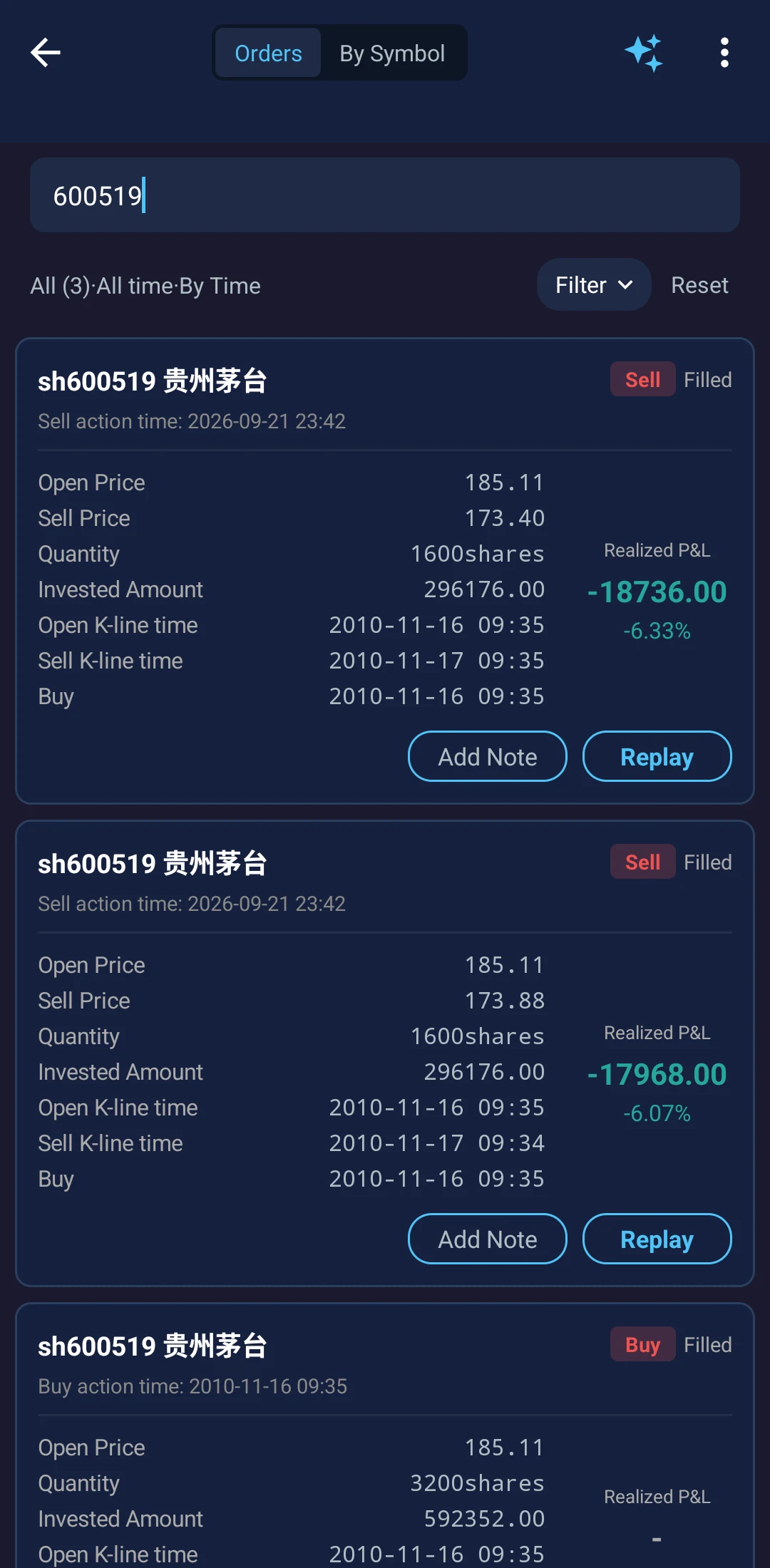
Tap the search field below the tabs. Enter a symbol, instrument name, or a word from a trade note. The example shows matching orders for 600519. Tap Reset to return to the full list.
Filter by status, result, and time
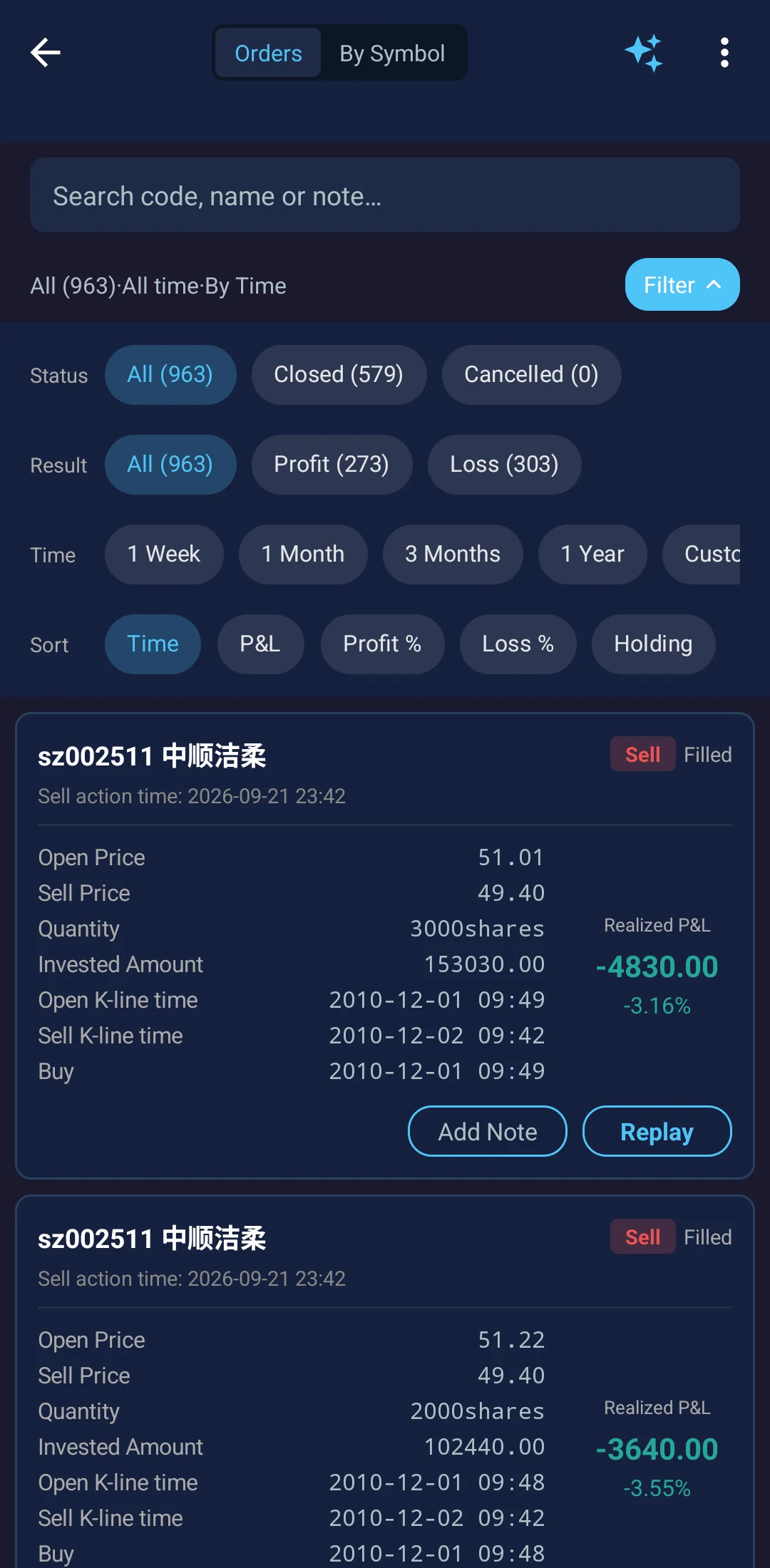
Tap Filter on the right below the search field. In the expanded panel, choose from Status, Result, Time, and Sort. For example, select Closed and Loss.
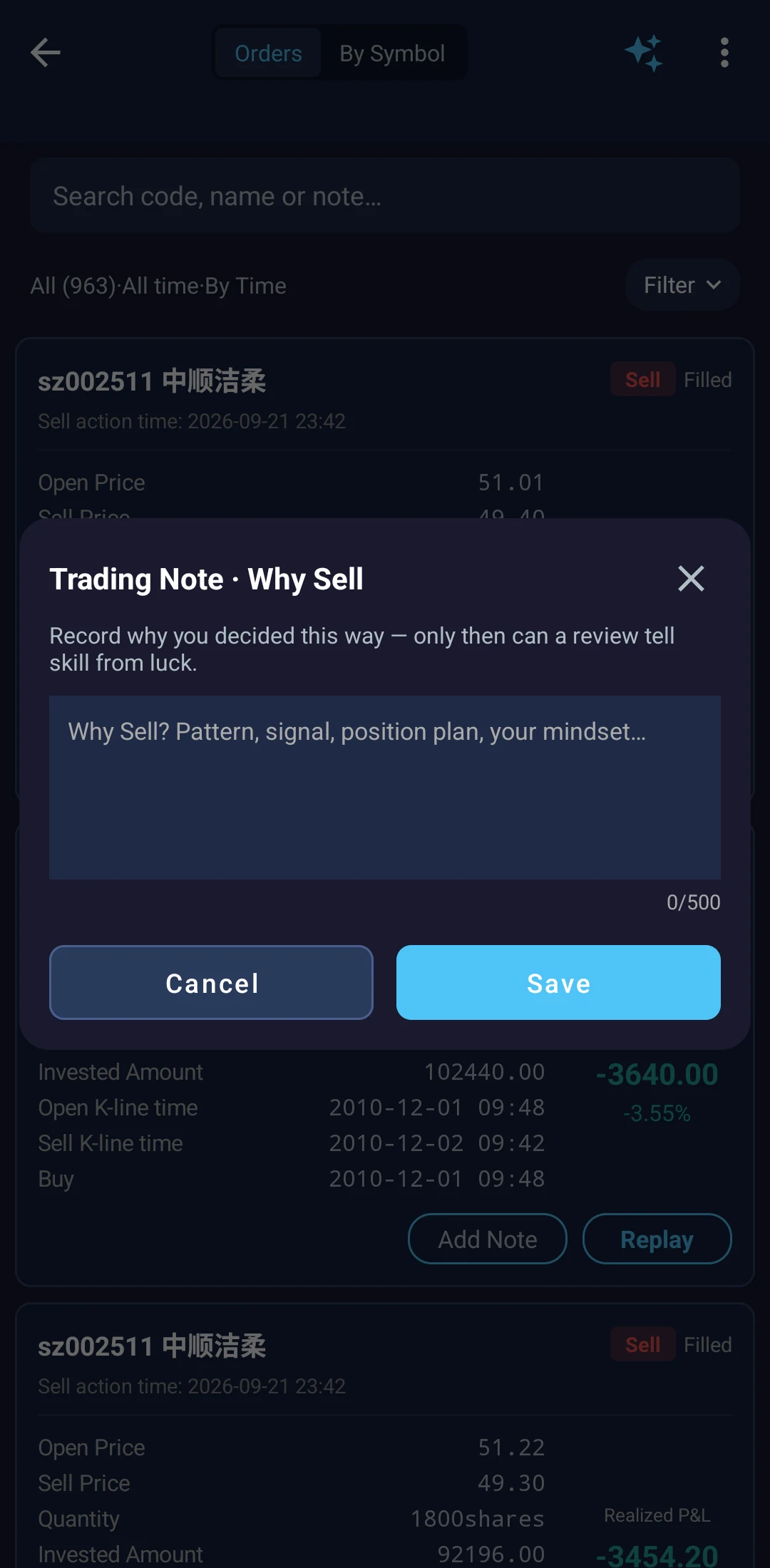
Find Add Note on the order card
Tap Add Note at the lower right of a card, just to the left of Replay.
Record why you took the trade
Enter the signal, position plan, or reasoning in the dialog and tap Save at the lower right. You can find the order again by searching for a word from the note.
Open the chart for an order
Tap Replay at the lower right of the order card. The chart opens at the candlestick time for that entry or exit.
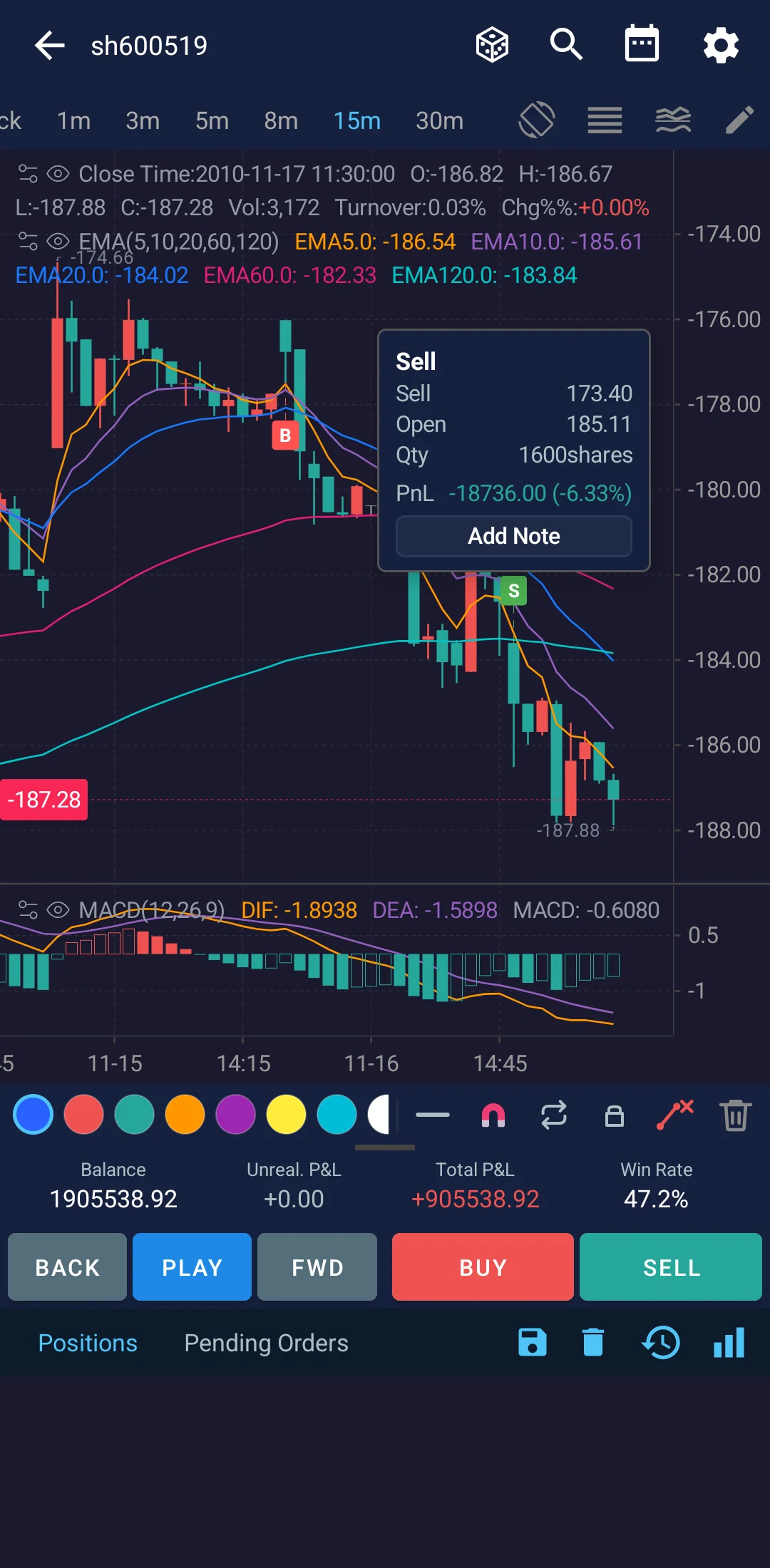
Tap a chart marker to see the fill
Tap a buy (B) or sell (S) marker on the chart. Its popover shows the fill price and quantity and gives access to the trade note.
Walk through a practice sessionReview trades with notes and chart markers