
Import a TongdaXin formula on mobile
Paste a formula or import it from plain text, check the parser result, and add it to the main chart or a separate pane.
Open Indicator Settings
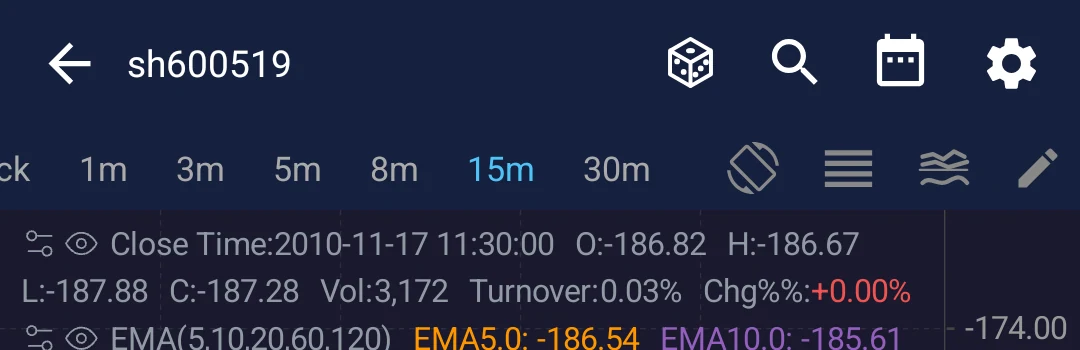
Tap the three wavy lines to the right of the timeframe tabs, between the three horizontal lines and the pencil.
Open the custom indicator editor
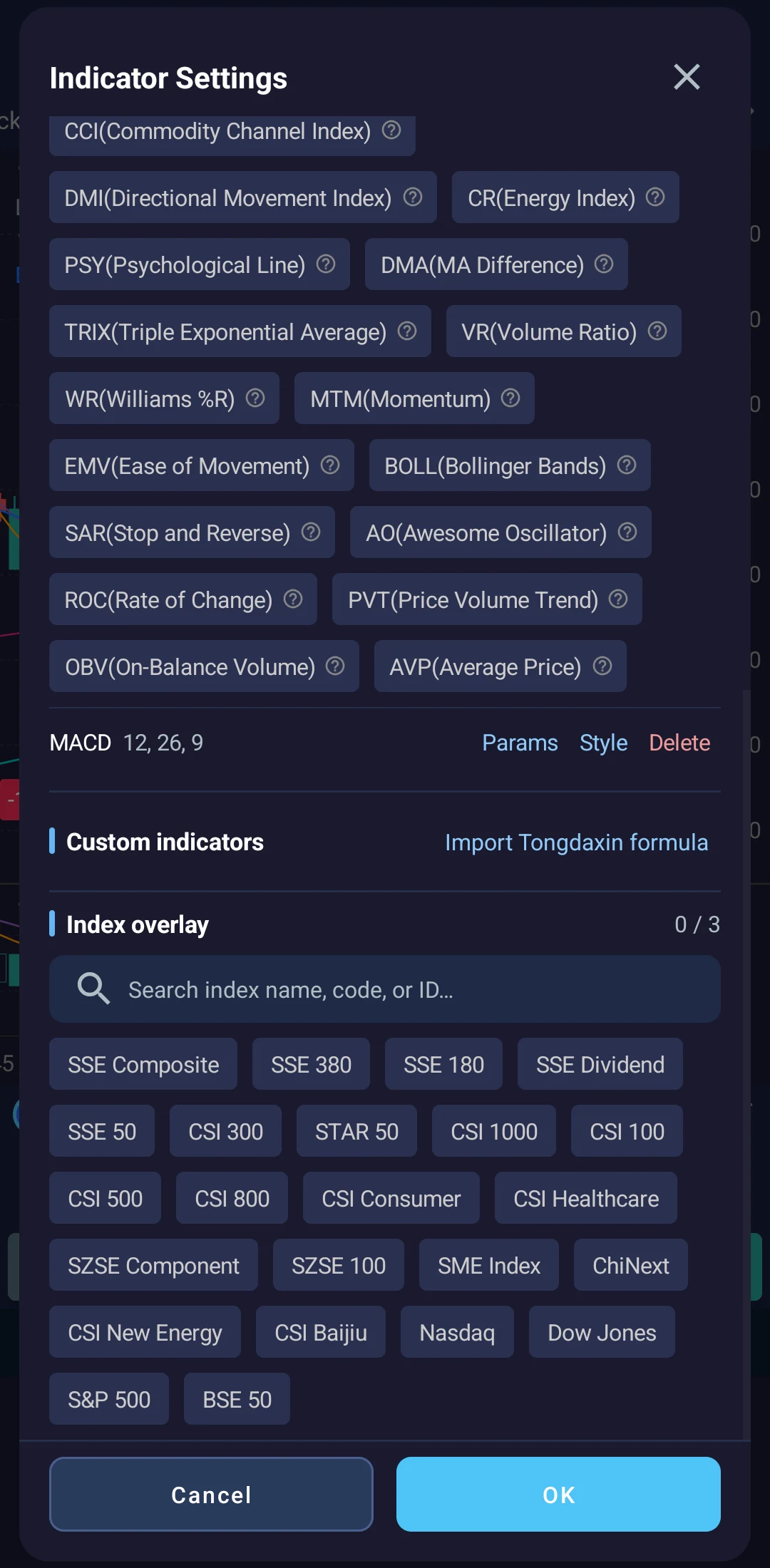
In Indicator Settings, scroll to Custom indicators, then tap Import Tongdaxin formula to its right.
Enter the formula and choose a pane
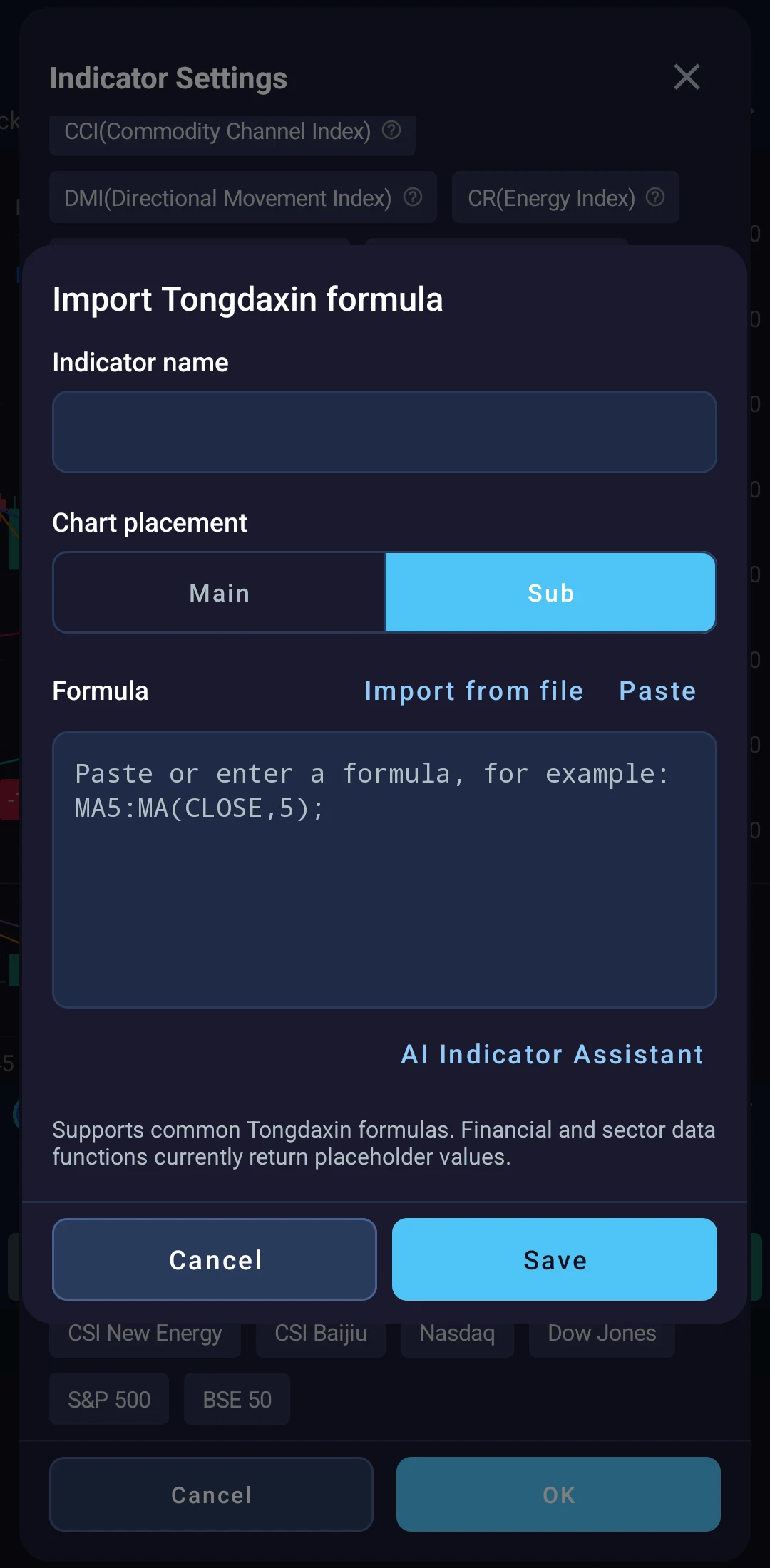
Enter an Indicator name and select Main or Sub under Chart placement. Type or paste the formula, or tap Import from file and choose a plain-text file such as a UTF-8 TXT file.
Check the parser result and save
Check that the formula parses and has a visible output, then tap Save. In Indicator Settings, verify that it appears in the selected pane. Financial and sector data functions currently return placeholder values.