
Review trades with notes and chart markers
Write or edit notes from Order History or a chart marker, then revisit them at the trade location.
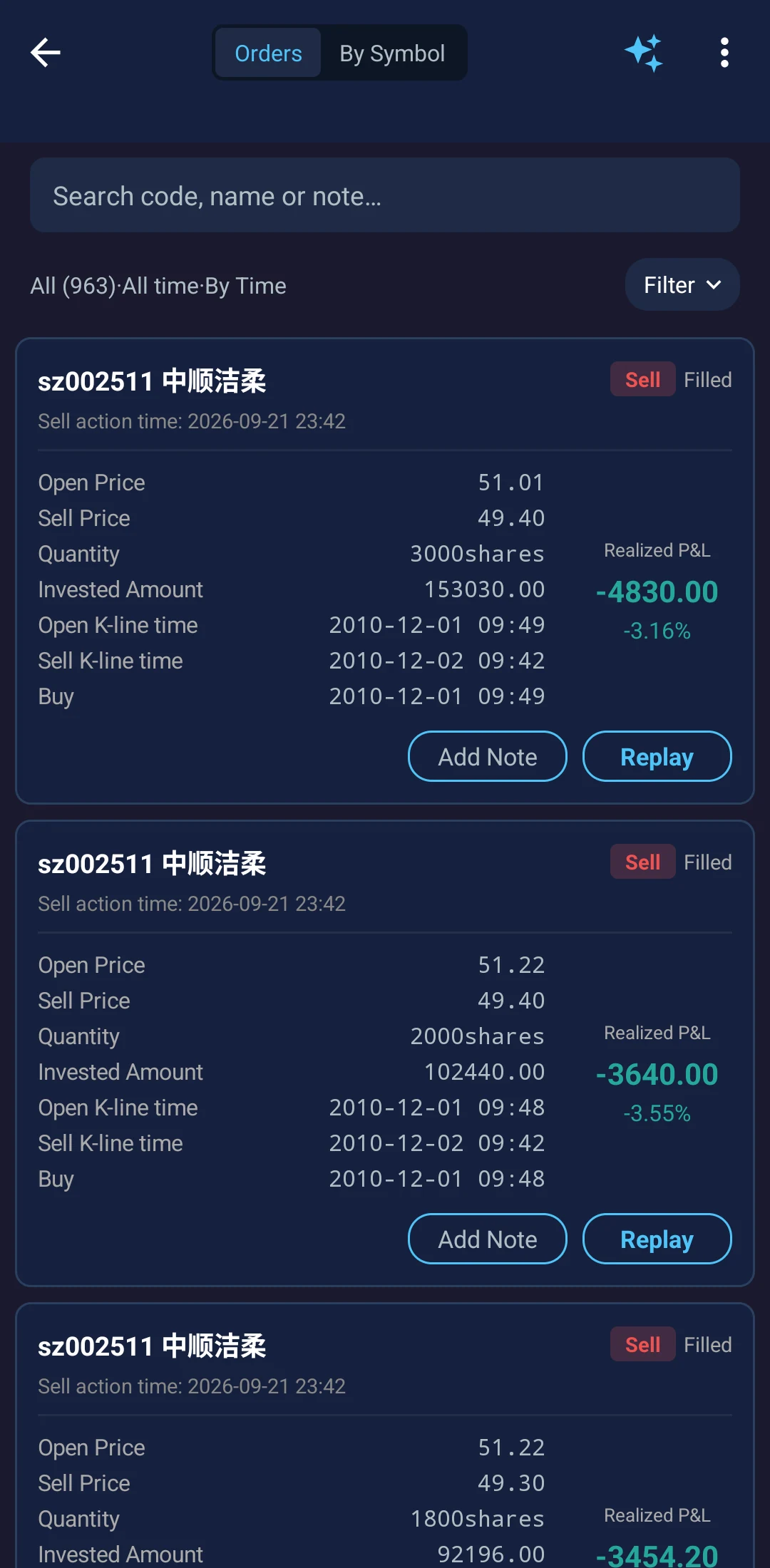
Open the note from the trade record
Open the Orders tab in Order History, then tap Add Note or Edit Note on the corresponding filled order.
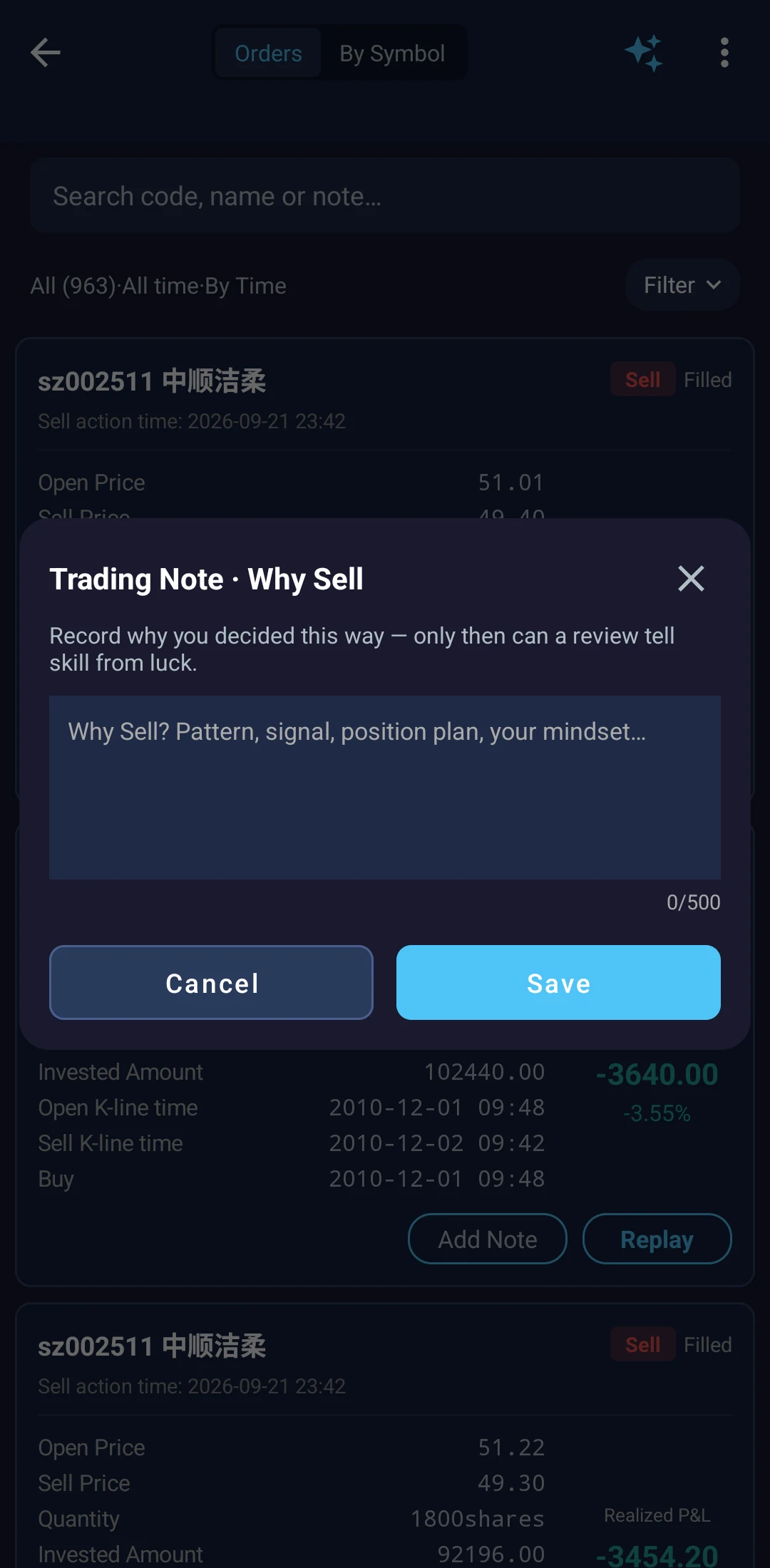
Record and save the reason for the trade
Write down the setup, signal, or position plan, then tap Save. The entry and exit can have separate notes.
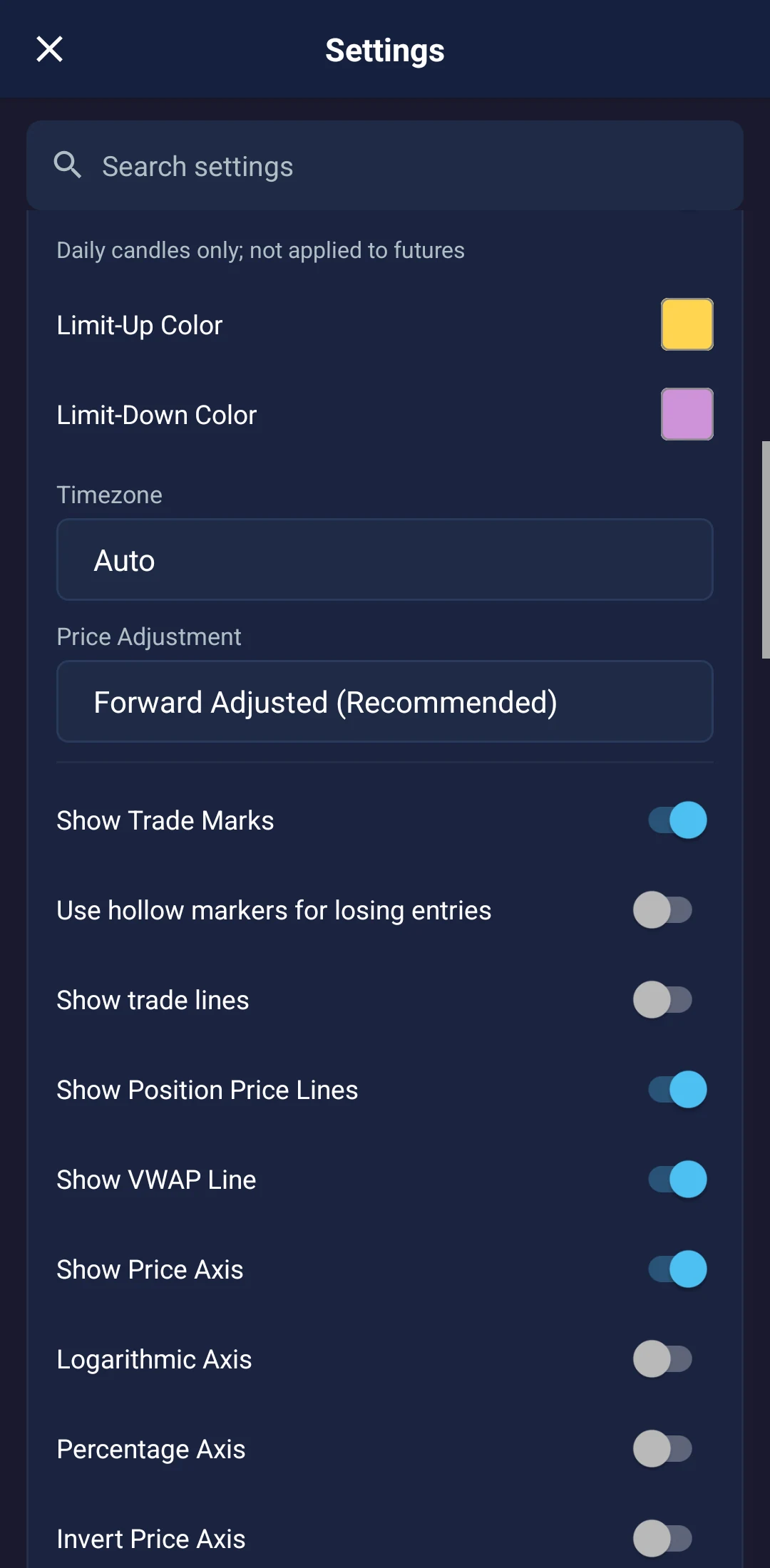
Display trade markers on the chart
Open the trading settings and enable Show Trade Marks. To see how entries and exits pair up, also enable Show trade lines.
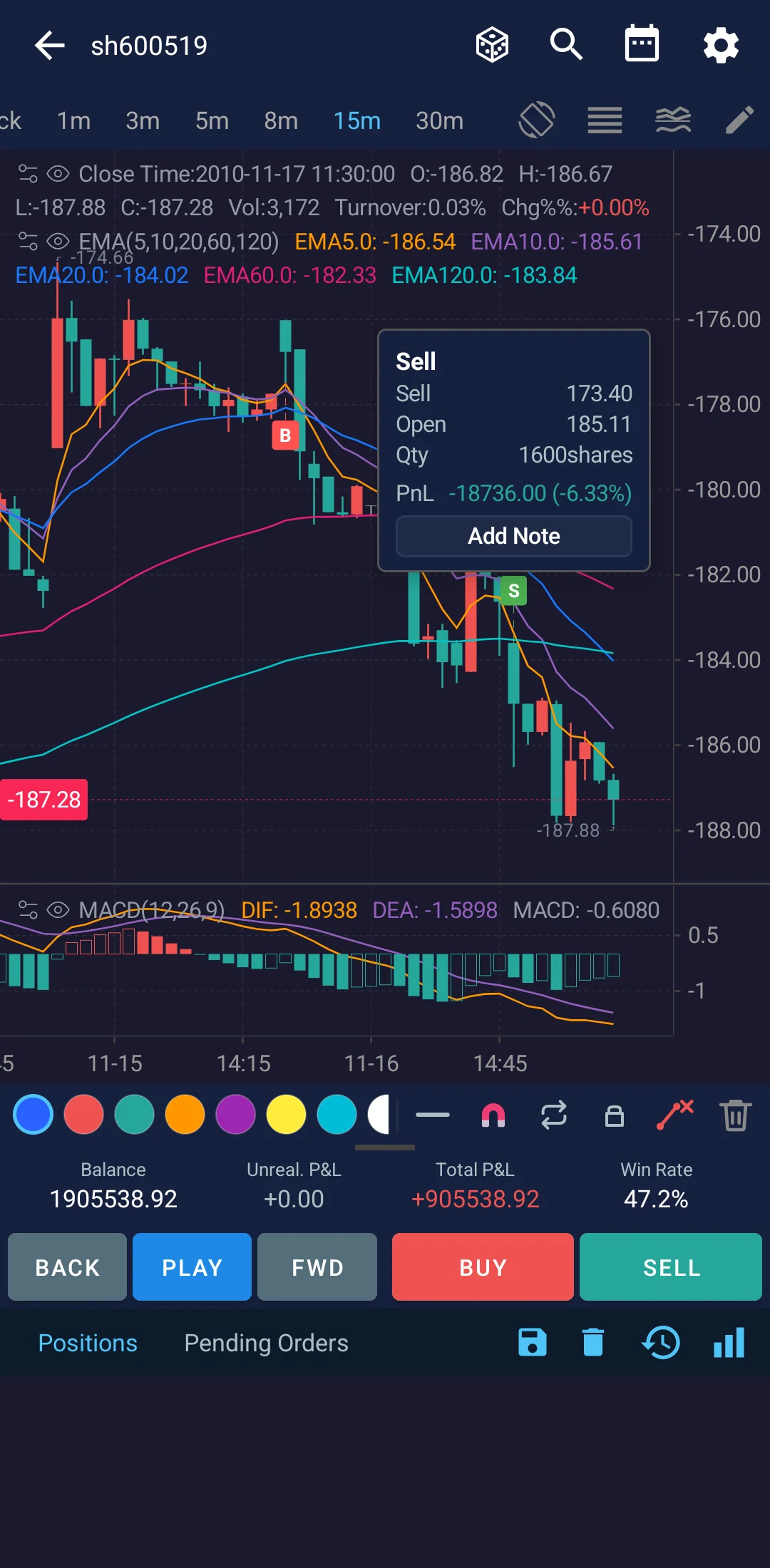
Read or edit the note at the trade location
Tap a trade marker on the chart. Spot trades use B for Buy and S for Sell. Futures use L, S, and C for Long, Short, and Close. The pop-up shows execution details and any note. Where the edit option is available, you can edit the note directly.
Walk through a practice sessionRestore orders, replay progress, and drawings from an archive