
Set a training date range, fixed start, and daily bar count
Limit a new session to a date range or use the trading calendar to move the current chart to a start date.
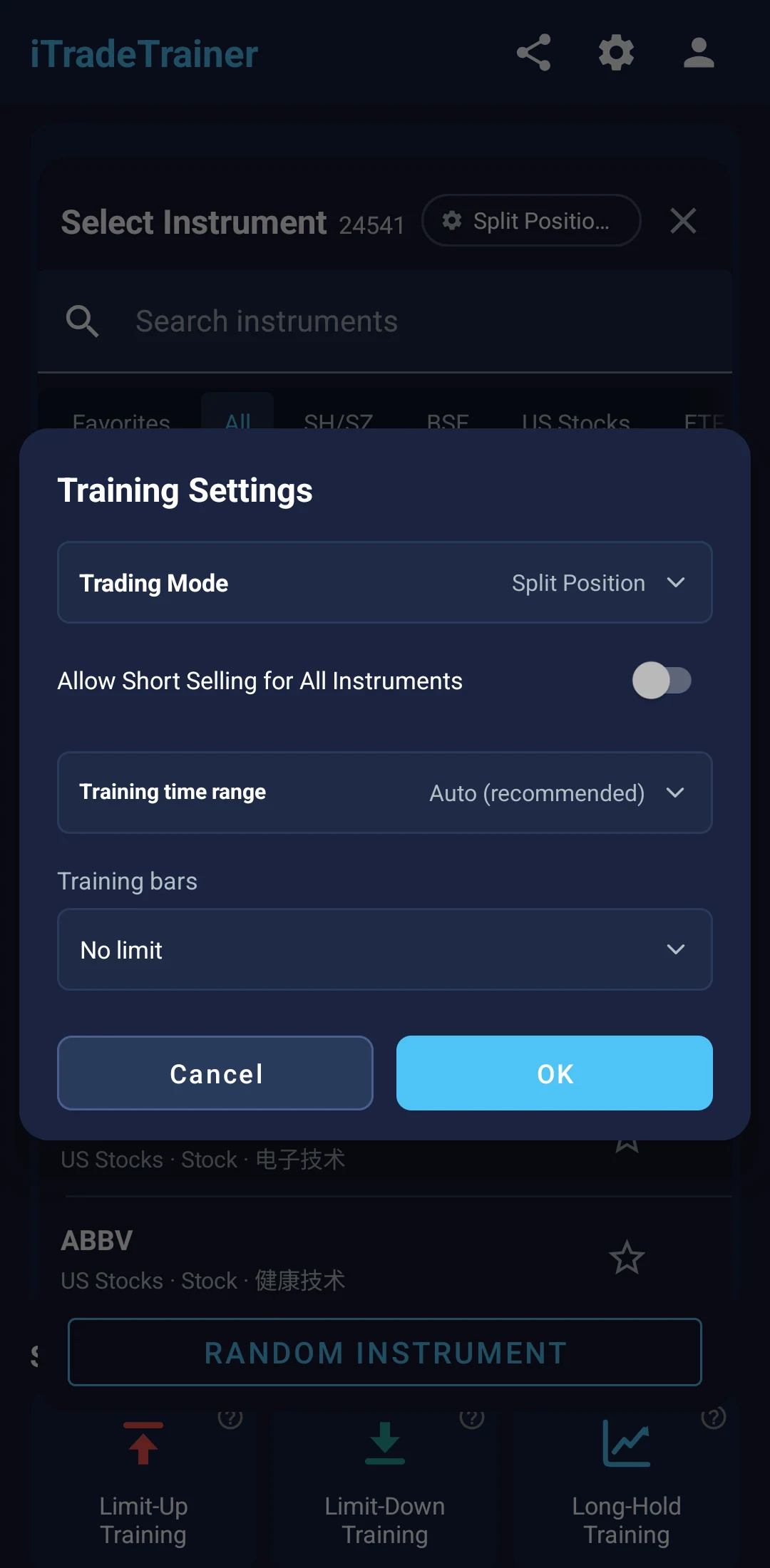
Set a range and count for a new session
Enter the dates in Random Pick, Double-blind Test, or the instrument picker’s training settings. With Fixed start time on, the first available bar at or after the start date is used. A choice of 50, 150, or 250 counts daily bars, within the end date you set.
Open the date picker for the current instrument
At the top right of the trading screen, tap the calendar between the magnifying glass and the gear.
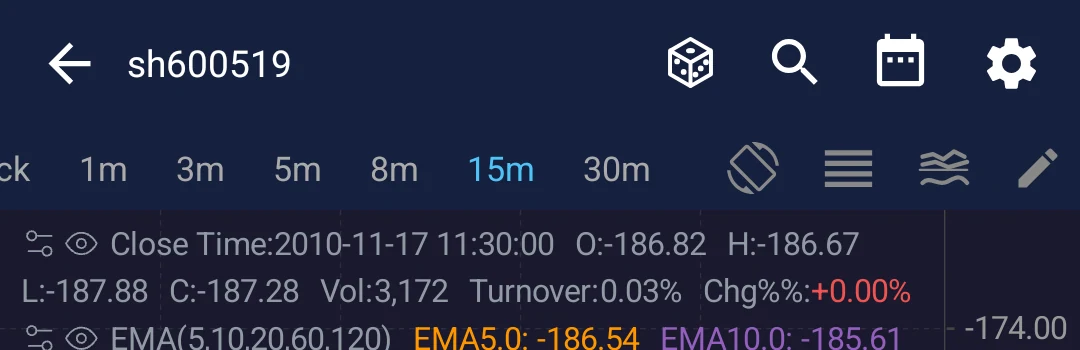
Move the current chart to a date
Choose a date under Start Time first to enable Fixed start time. Turn it on and tap Confirm at the bottom right. Use Random time to pick a start within the range.
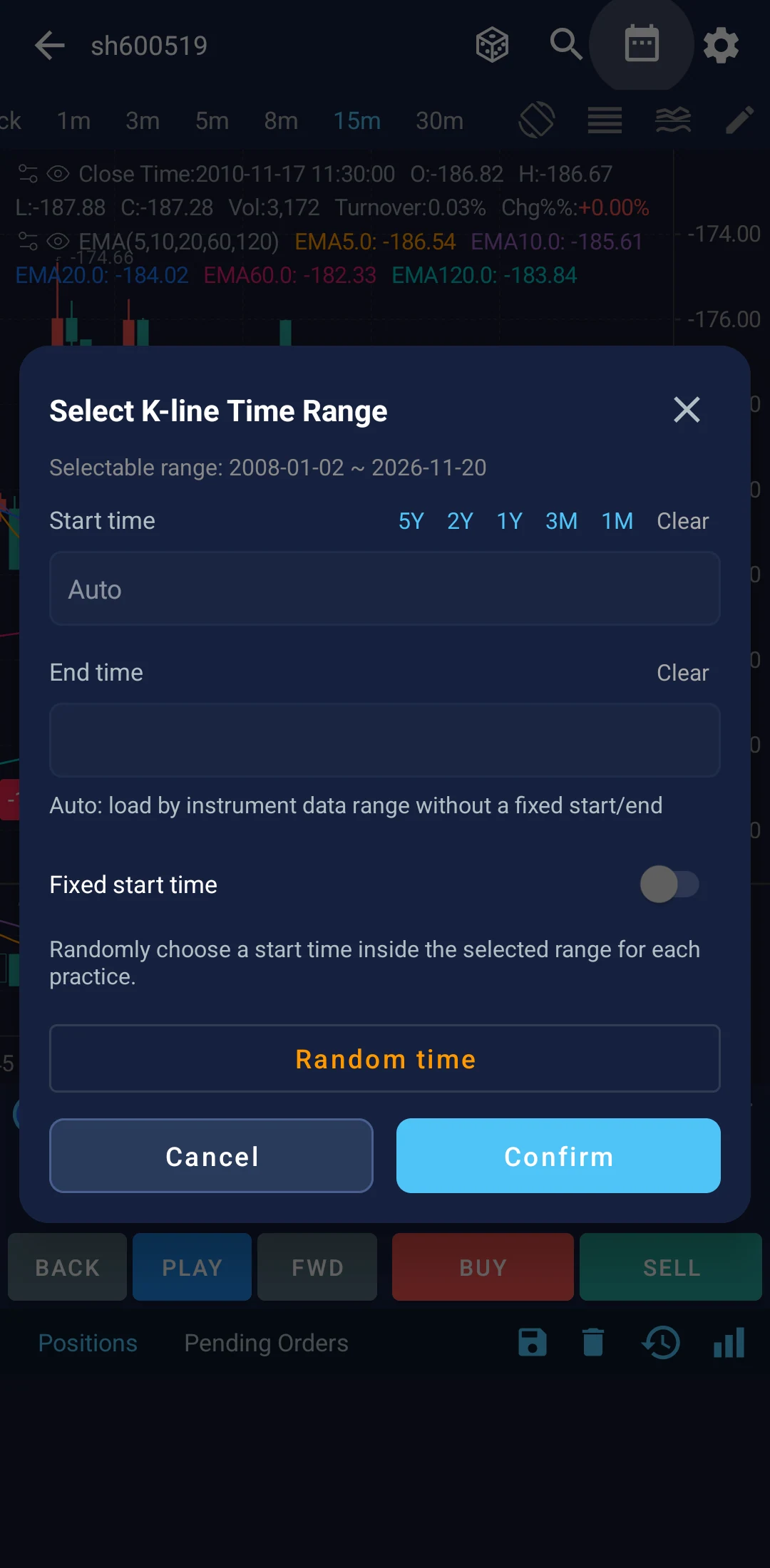
Walk through a practice sessionReplay candlesticks on mobile