
Replay candlesticks on mobile
Step through bars or play them automatically, set the start date, and adjust playback speed.
Step through the chart or play it automatically
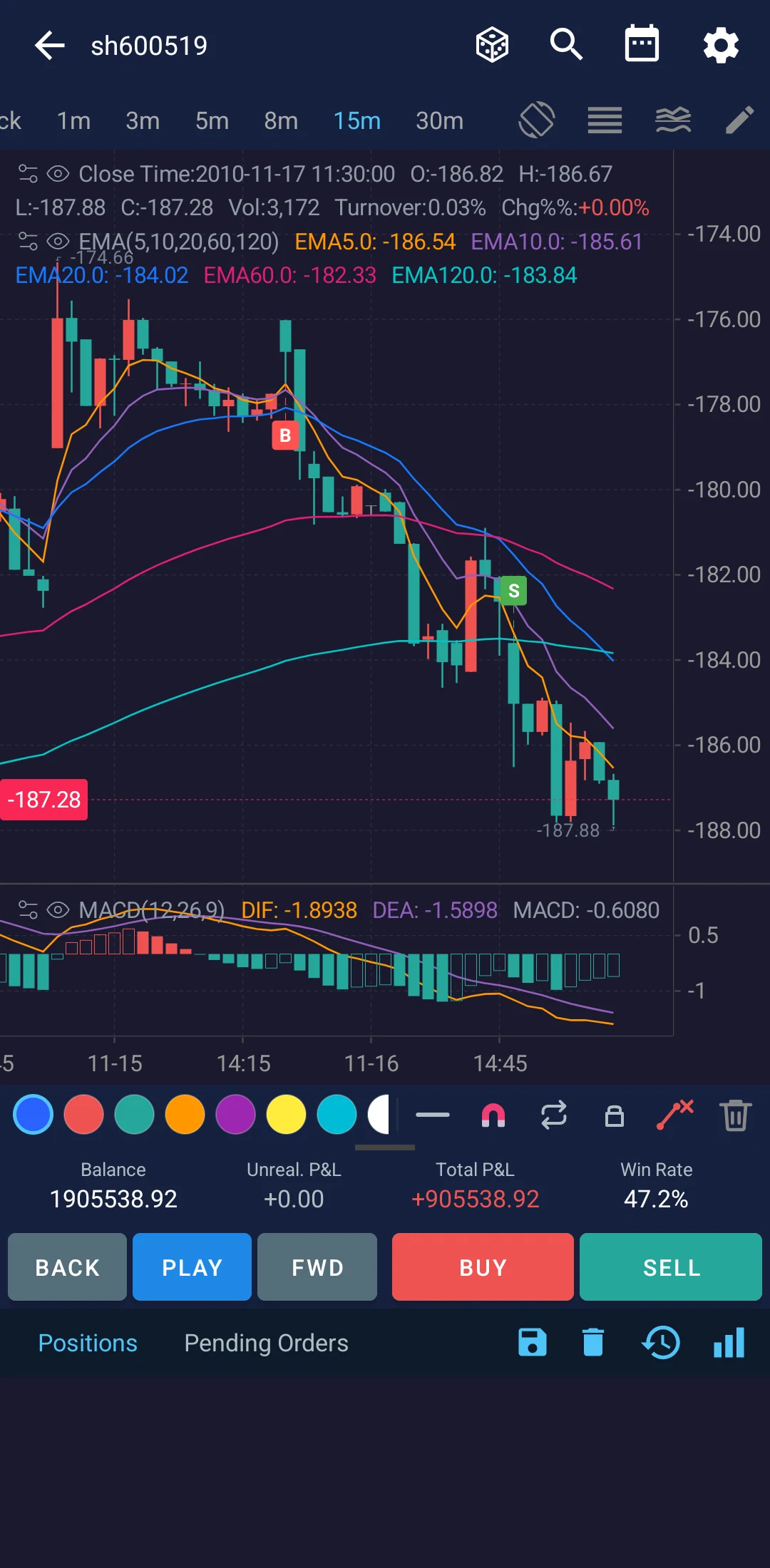
Below the chart, tap Fwd or Back to step through the replay. Tap Play to advance automatically and Pause to stop at the current point.
Open the date range from the calendar
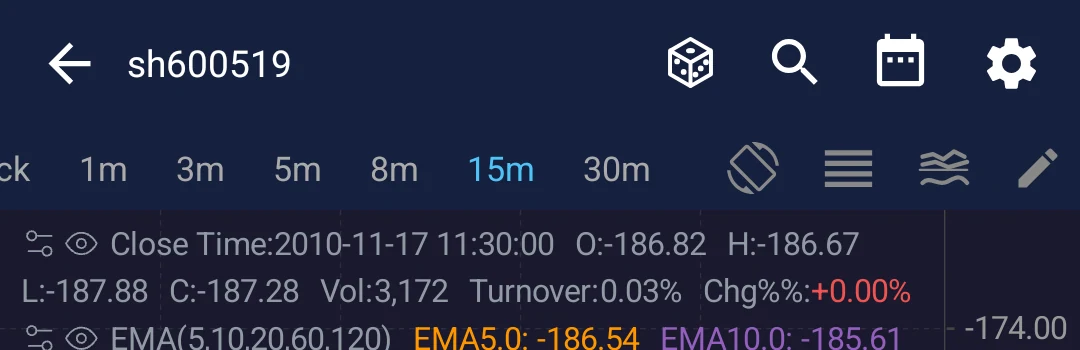
At the top right of the trading screen, tap the calendar between the magnifying glass and the gear.
Choose the replay start and date range
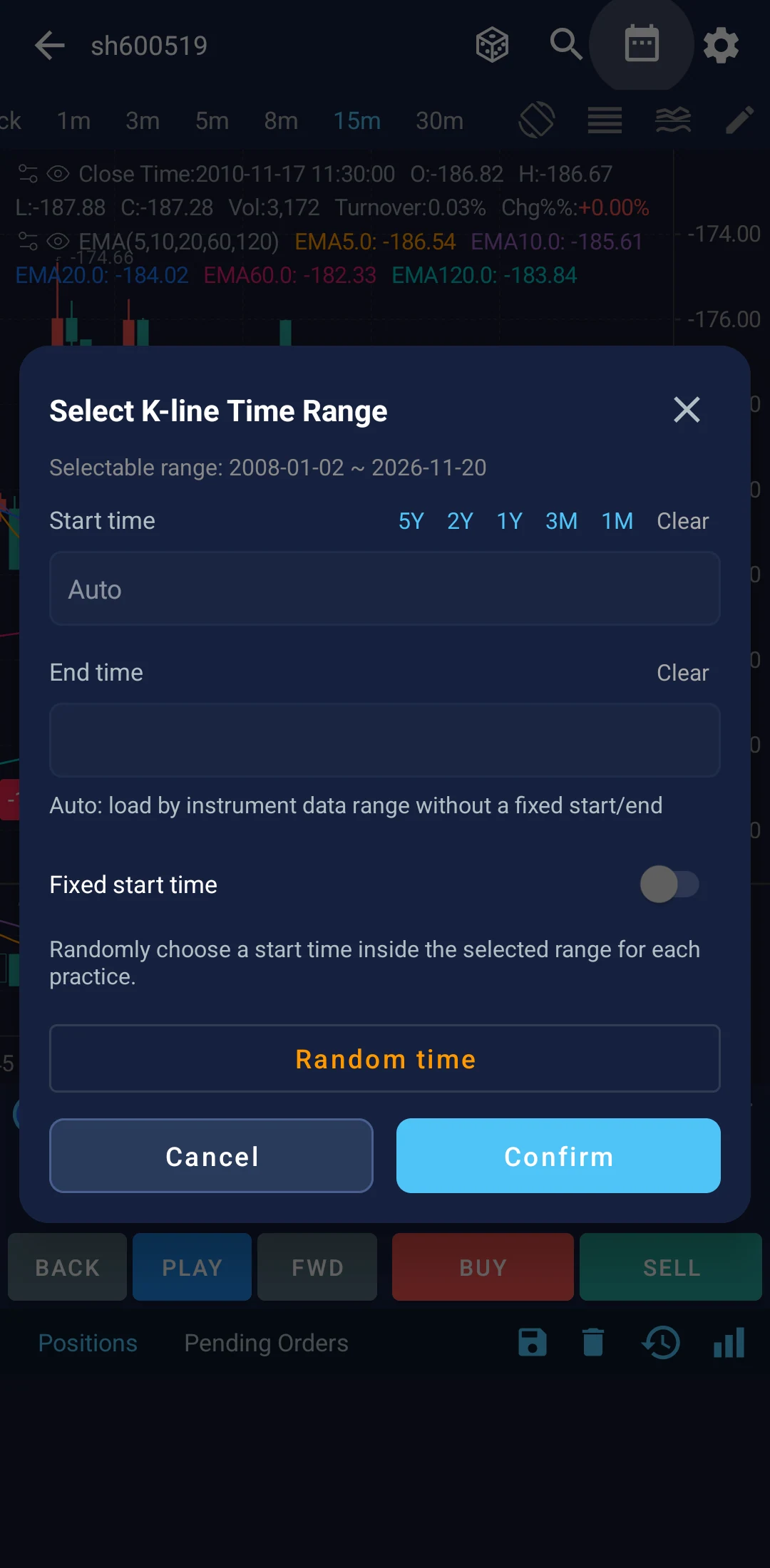
Pick a start date and an optional end date. Turn on Fixed start time and tap Confirm to begin at the first available bar in the range. Tap Random time to pick a start at random.
Adjust playback and stepping behavior
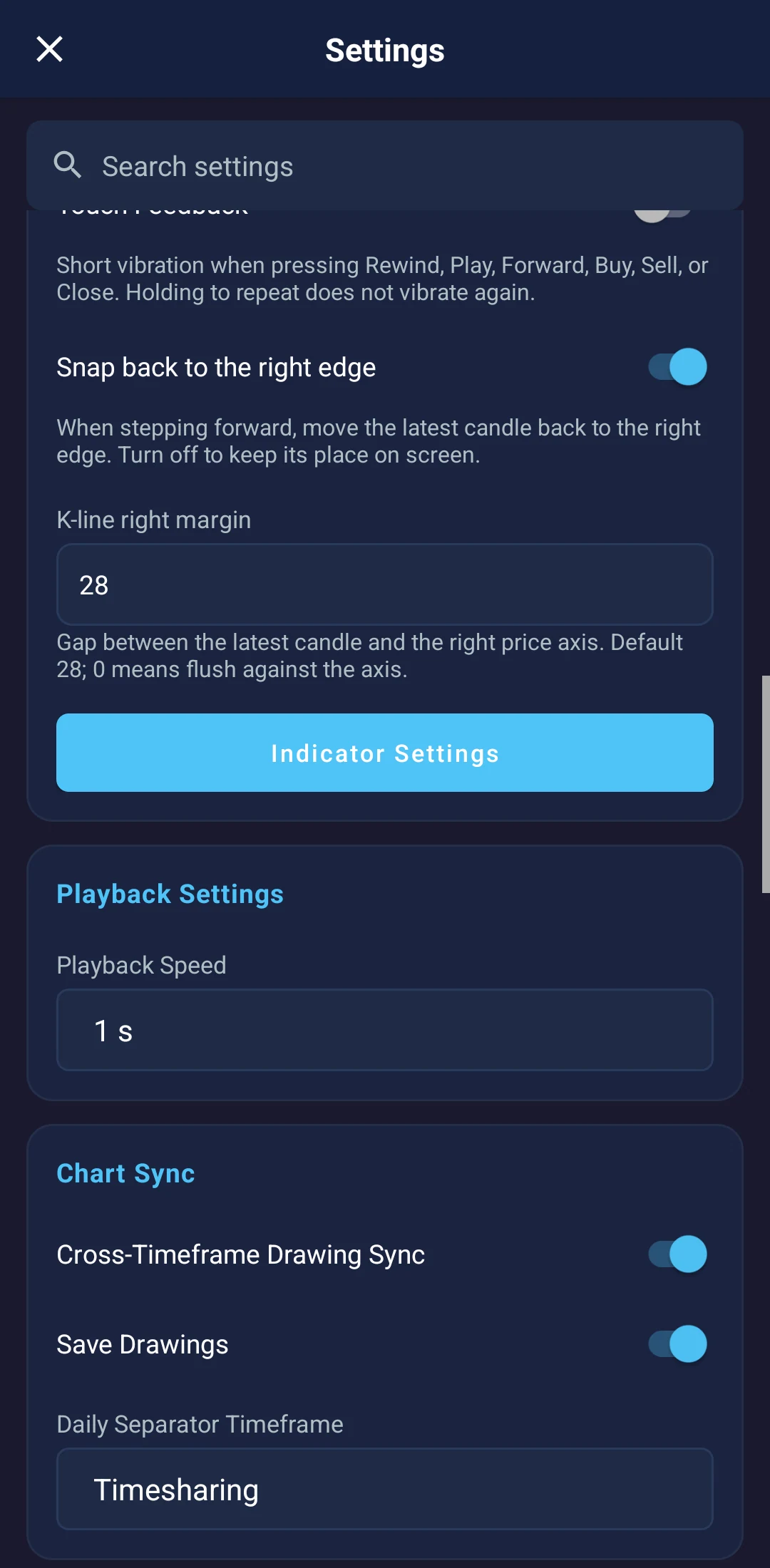
Open Settings with the gear icon and adjust Playback Speed. Scroll up to Disable Back Button if you want to practice without rewinding. Turn on Snap back to the right edge to bring the latest bar to the right when you step forward.
Walk through a practice sessionPlace and manage practice orders on mobile