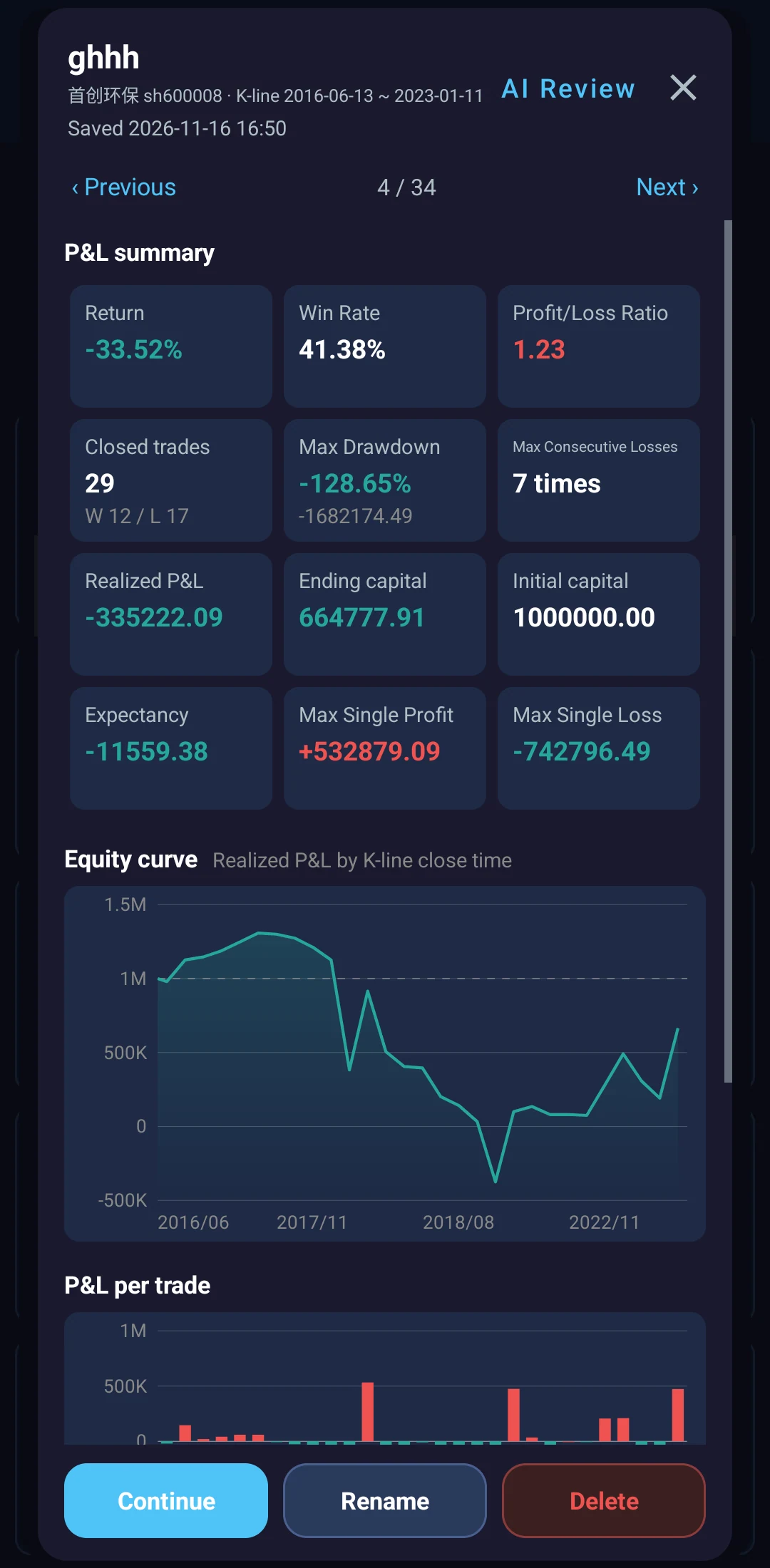
Restore orders, replay progress, and drawings from an archive
Save your current session, preview an archive, and continue training from the saved state.
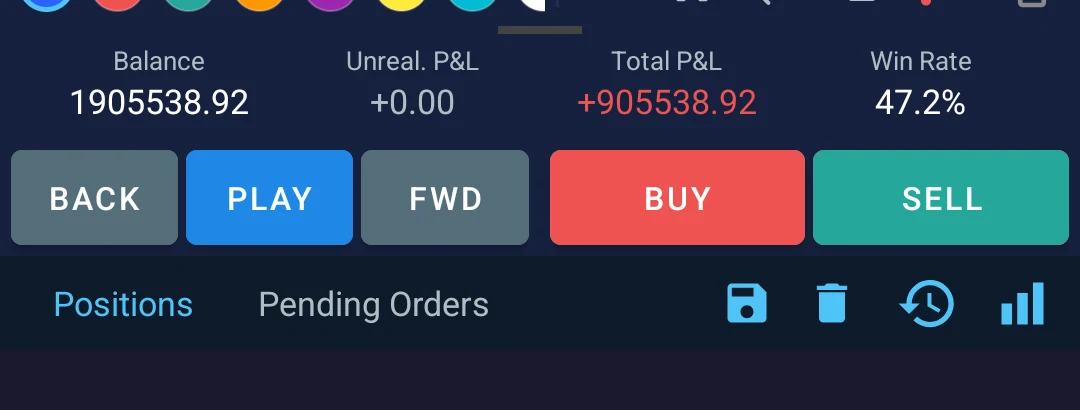
Open the archive dialog
Tap the disk icon below the chart. You can also choose Archive from the Order History menu.
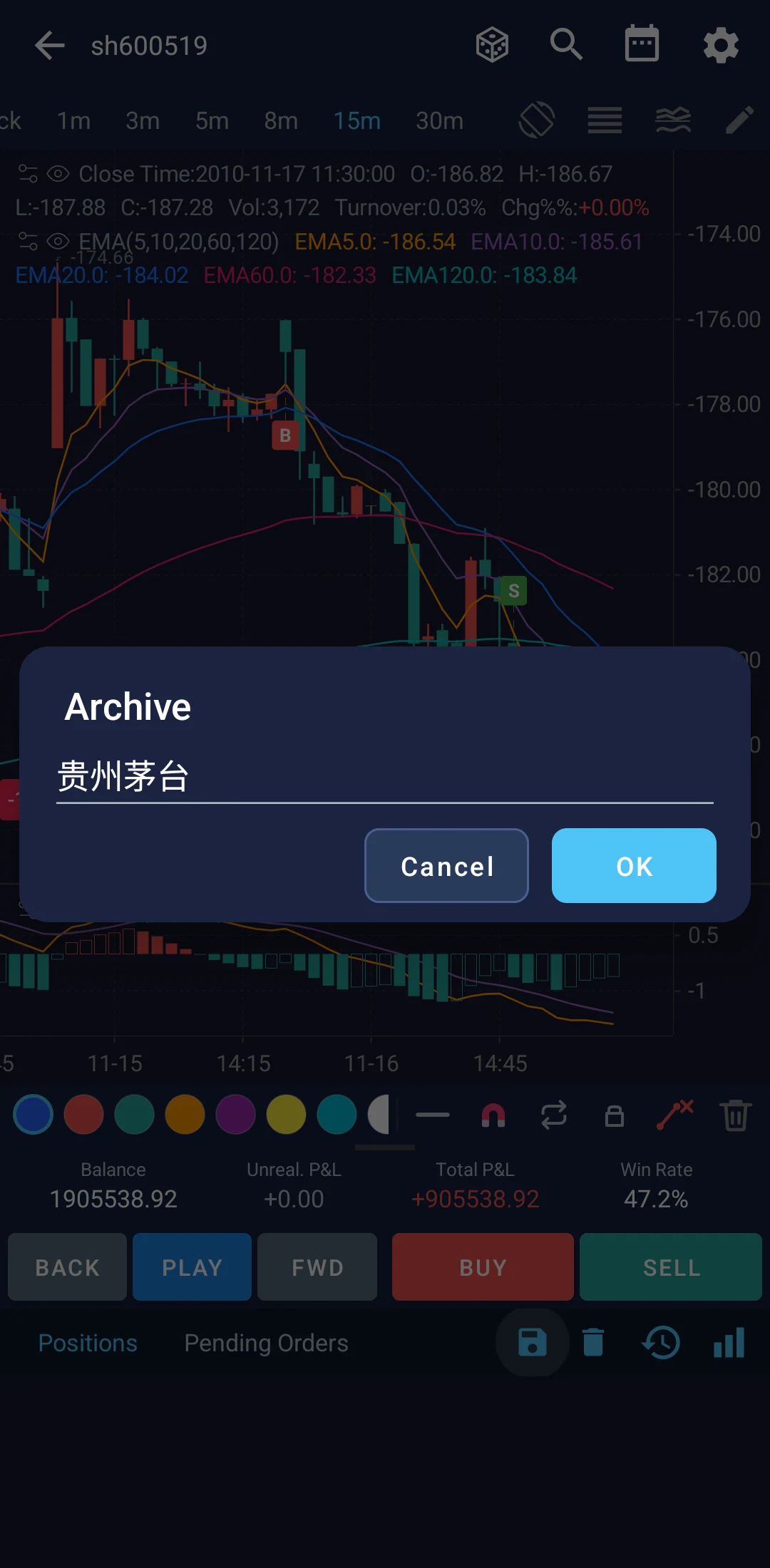
Save your current session first
Enter a recognizable name and tap OK. The archive captures current orders, the previous session, and saved drawings.
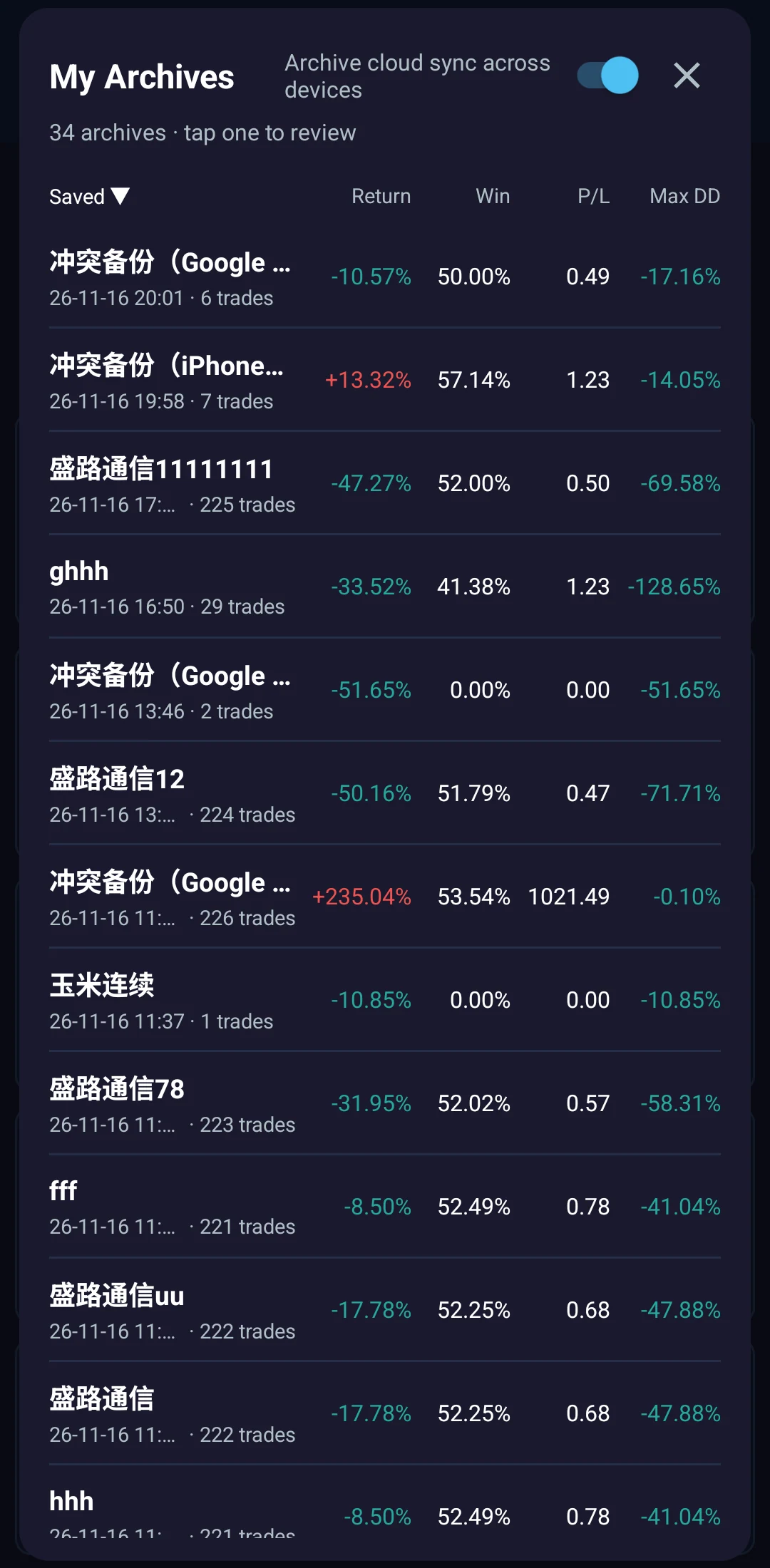
Preview another snapshot in My Archives
Open View Archives from the home screen or My Archives from Order History. Tap an archive to inspect its return, P&L summary, equity curve, and individual trades.
Confirm the restore and resume training
Check that you selected the intended archive, then tap Continue. Confirming replaces current orders, the previous session, and saved drawings with those in the archive.