
Place and manage practice orders on mobile
Use Split Position mode to place market and limit orders, check your positions, and set exits.
Enable Split Position mode
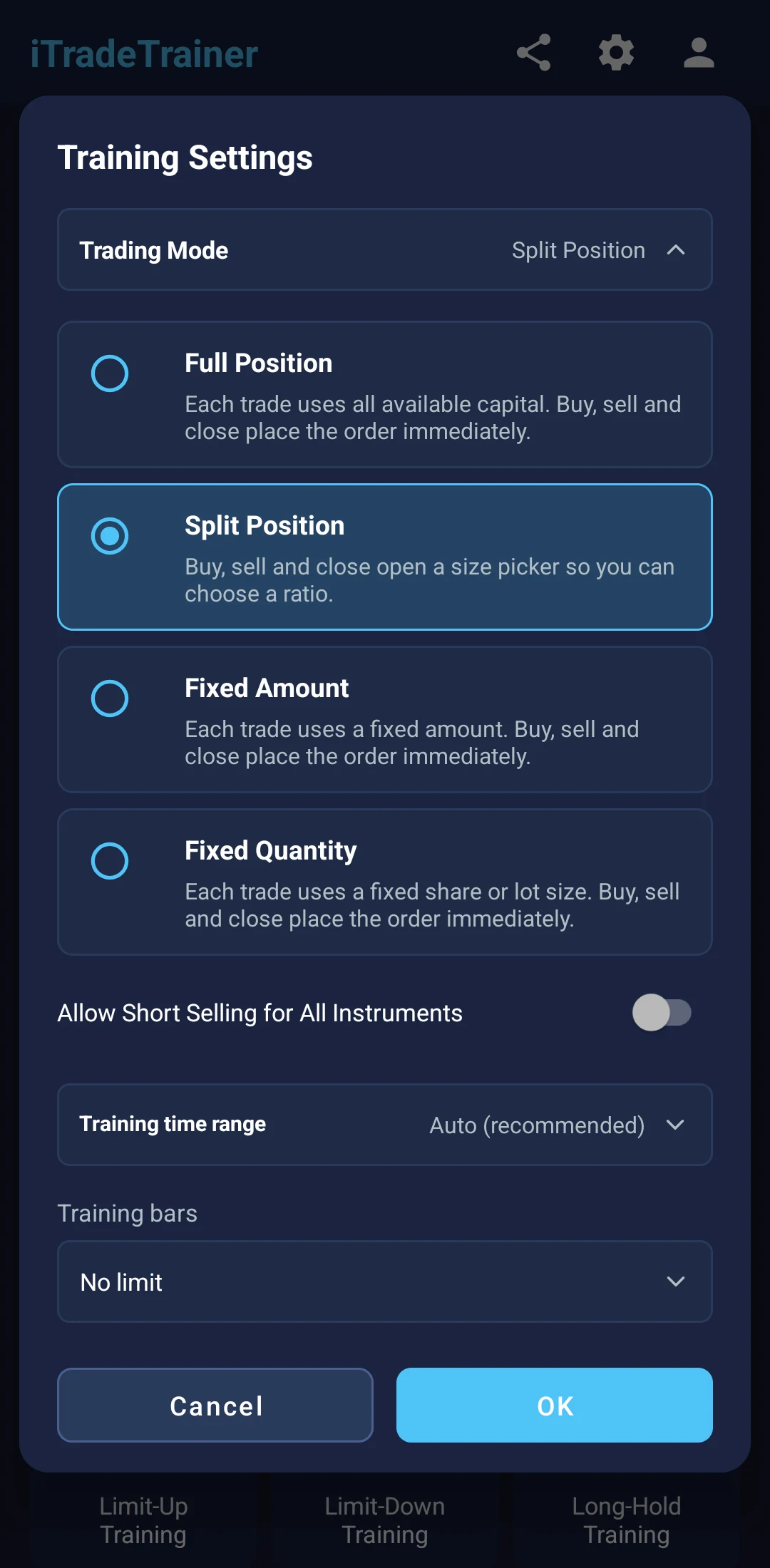
In Training Settings or trading settings, set Trading Mode to Split Position. Tapping Buy or Long will then open the order form.
Open the order form below the chart
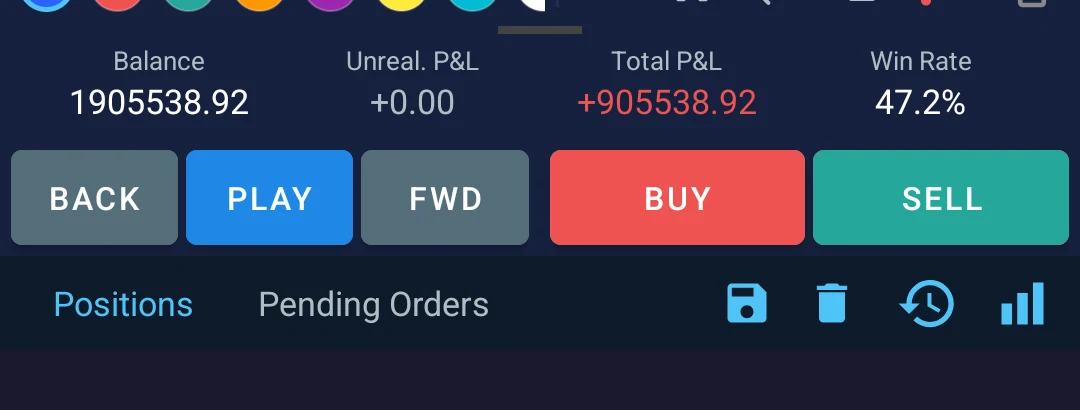
Tap Buy below the chart. Instruments that allow shorting show Long and Short instead. Positions lists open holdings, and Pending Orders lists unfilled orders and stop-loss or take-profit orders.
Buy at market
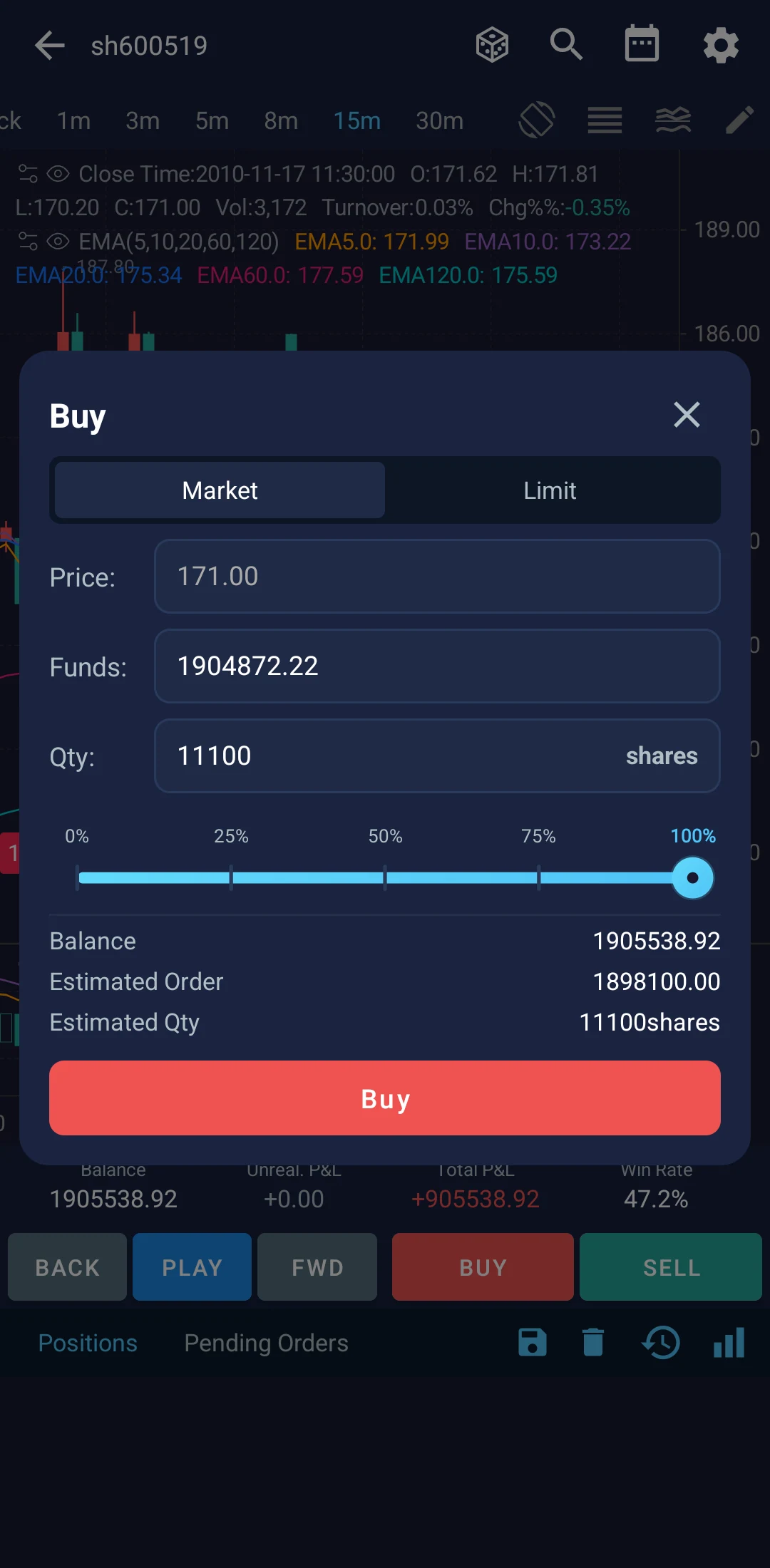
Tap Buy below the chart and select Market. Check the price and enter an amount, quantity, or percentage of available funds. Tap Buy at the bottom of the form to submit, then check Positions after it fills.
Set a limit price and check open orders
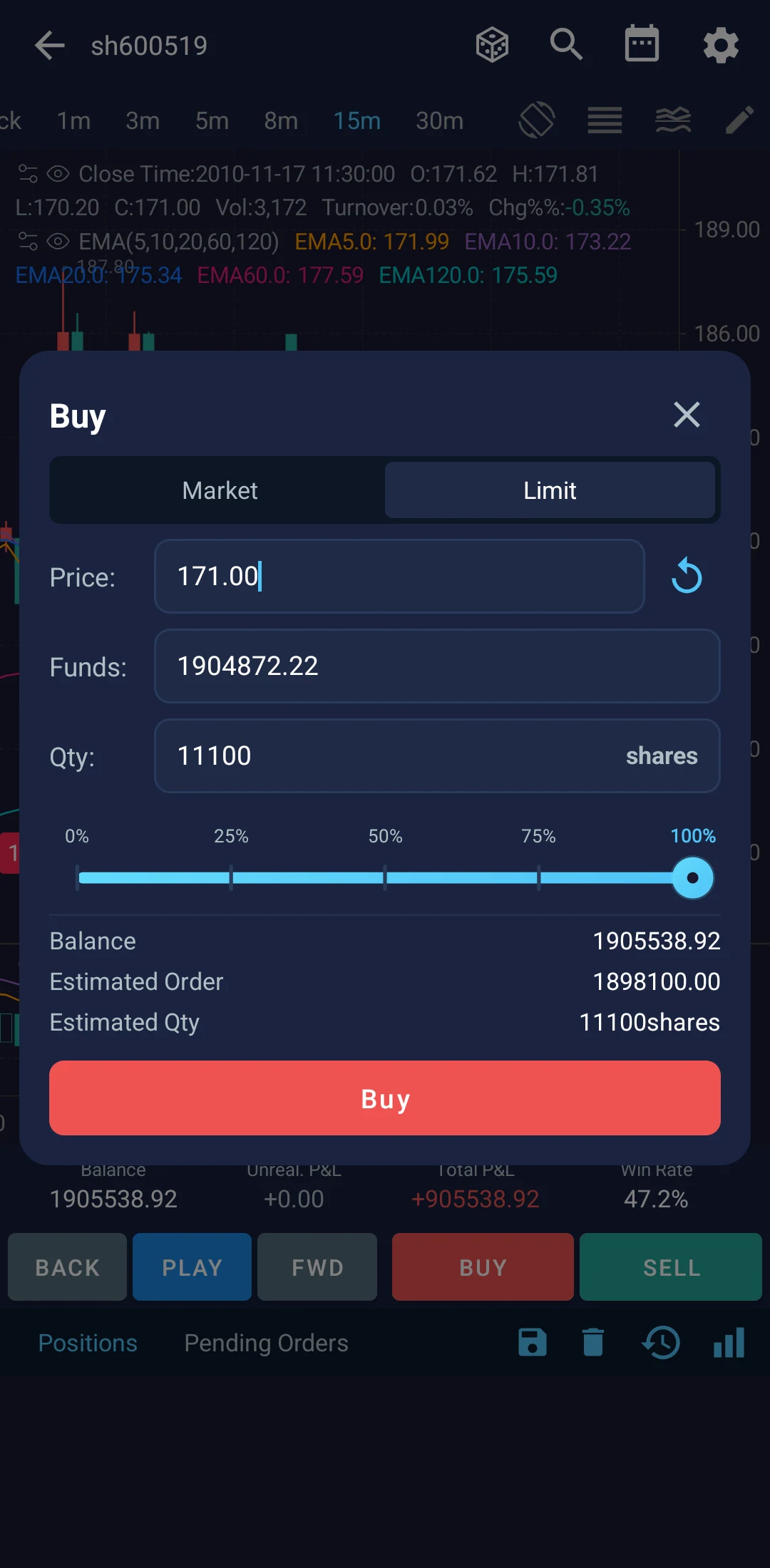
In the order form, choose Limit, enter your price and size, and confirm. Look under Pending Orders for an unfilled order and tap Cancel next to it if needed.
Set a stop loss or take profit
Under Positions, tap the position’s stop-loss or take-profit button. Enter a trigger price or percentage and the quantity to close. After saving, manage the exit under Pending Orders.