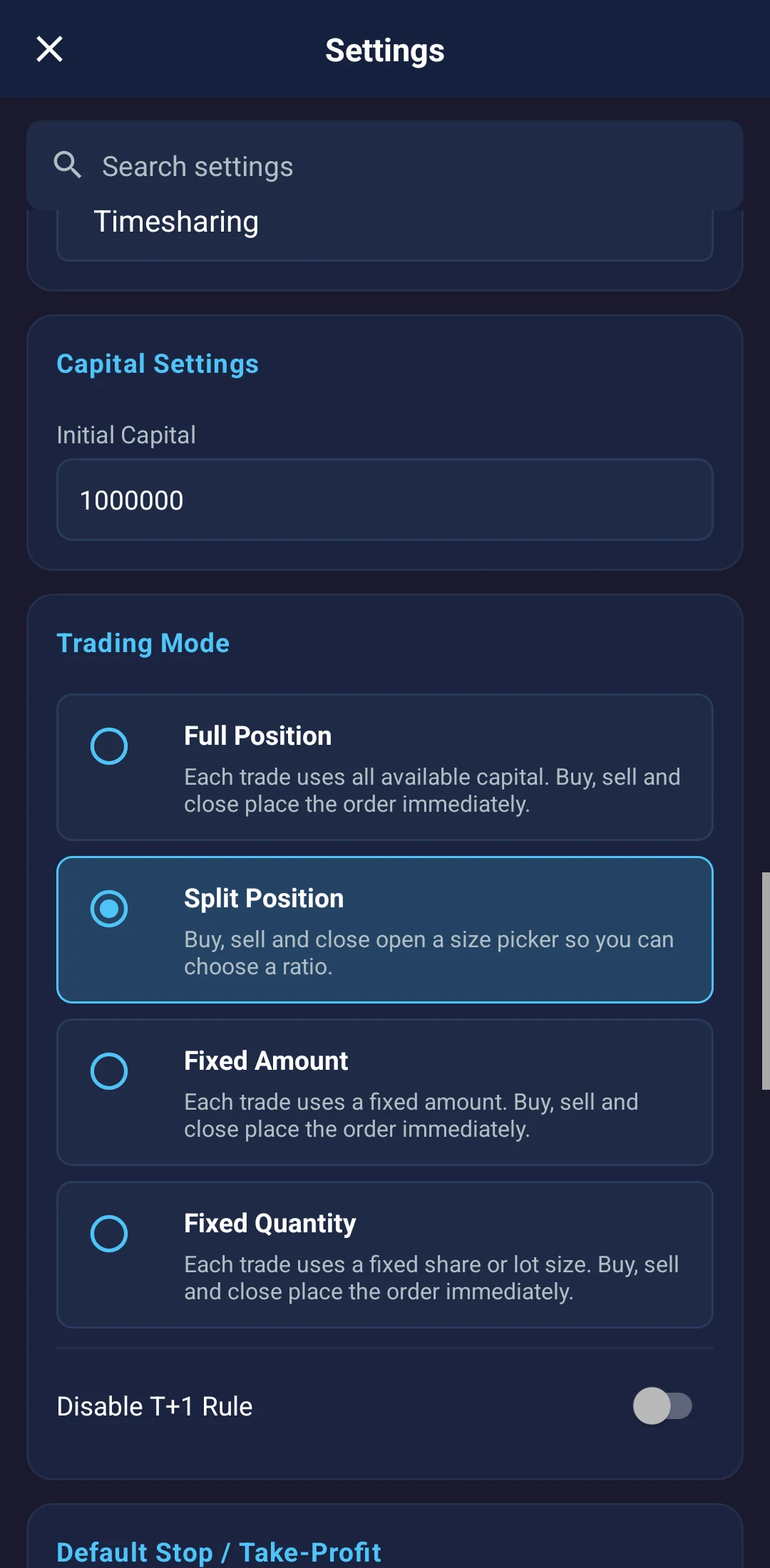
Choose a position-sizing mode
Compare Full Position, Split Position, Fixed Amount, and Fixed Quantity to understand how each places orders.
Find the trading mode setting
Before training, open the options at the top right of Select Instrument. During practice, tap the gear on the trading screen and search for Trading Mode.
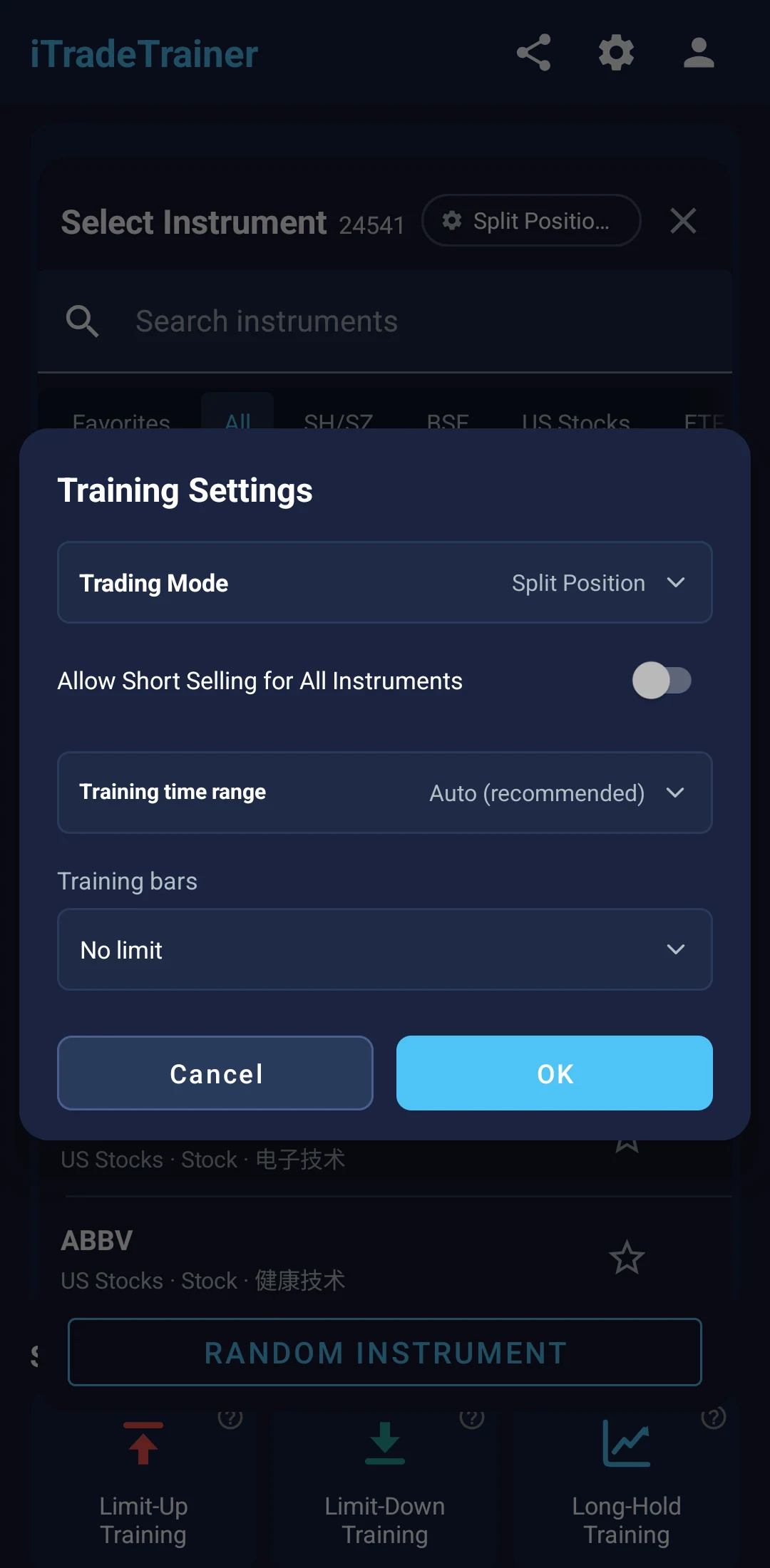
Use Split Position for per-order control
Split Position opens a form when you buy, sell, or close a position. Enter the size for each trade and switch to Limit when you want to wait for a target price.
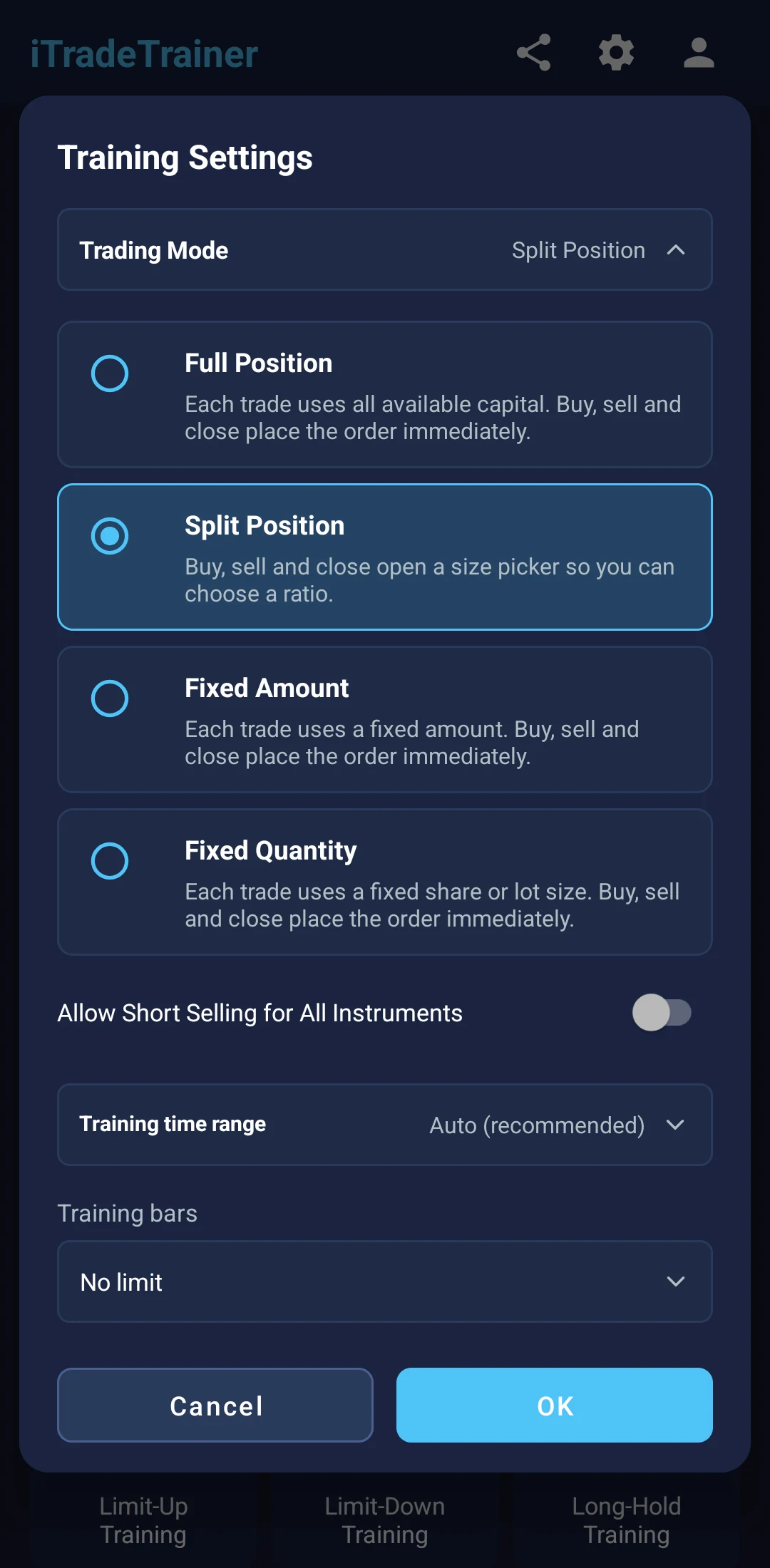
Place orders directly with a preset rule
Full Position opens with all available funds. Fixed Amount uses a set cash amount, and Fixed Quantity uses a set number of shares or contracts. Enter the amount or quantity in Settings when you choose a fixed mode. Entries use the preset directly. If you have multiple positions when closing, choose the one to close first.