
Change language and time zone and check for updates
Set the desktop language and market time display, then check the installed version.
Open trading settings
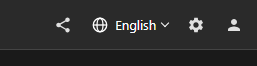
Click the gear to the left of the profile icon at the top right of Home.
Set the language and chart time zone
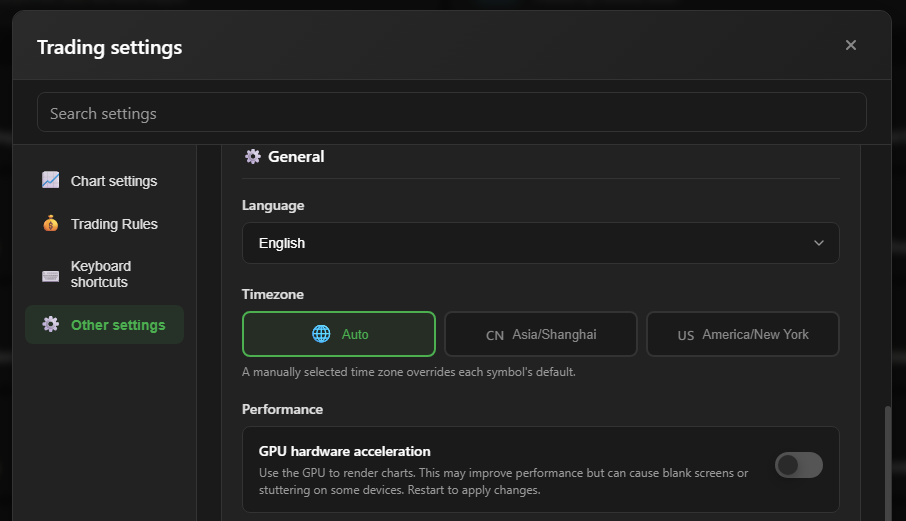
Under General in Other Settings, choose the interface language and select Auto, Shanghai, or New York.
Verify the labels and candle times
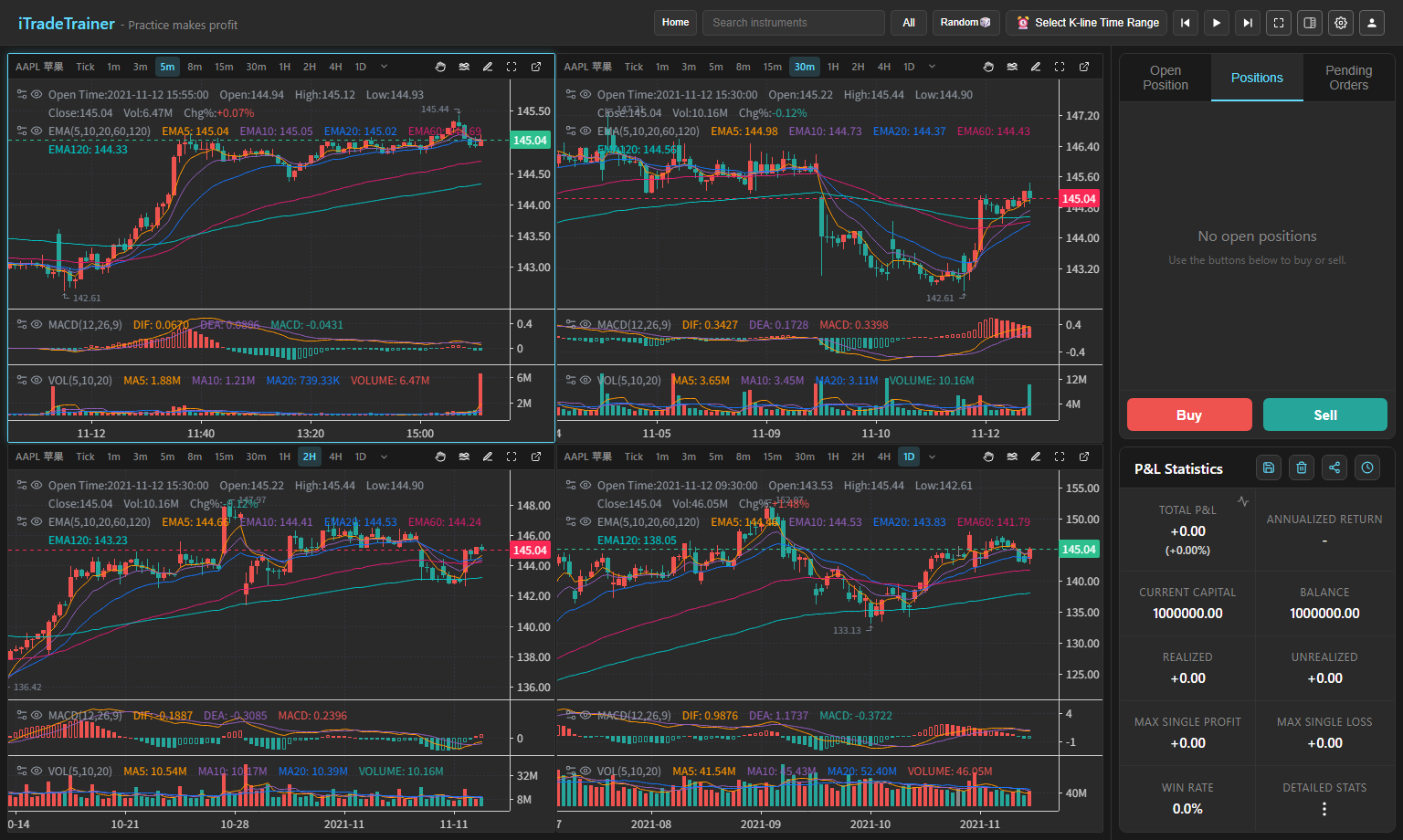
Reopen the same chart and check its controls and time axis. Order History also lists when you actually placed each trade.
Check the installed version and updates
Scroll to Help and Downloads on Home and click Check for Updates at the far right.
