
Sync current orders across devices and resolve a conflict
Sync orders, replay progress, and drawings, then choose which workspace to use if the local and cloud copies differ.
Open Order History from Home
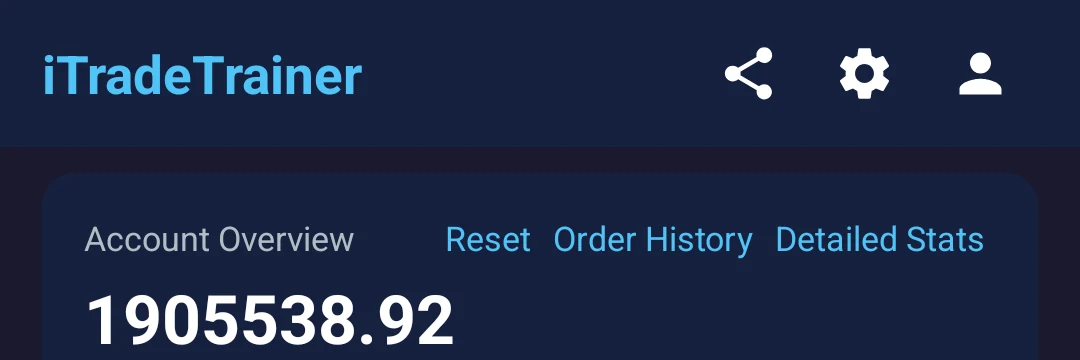
Sign in to the same account on each device. In Account Overview on the home screen, tap Order History.
Enable order sync in the menu
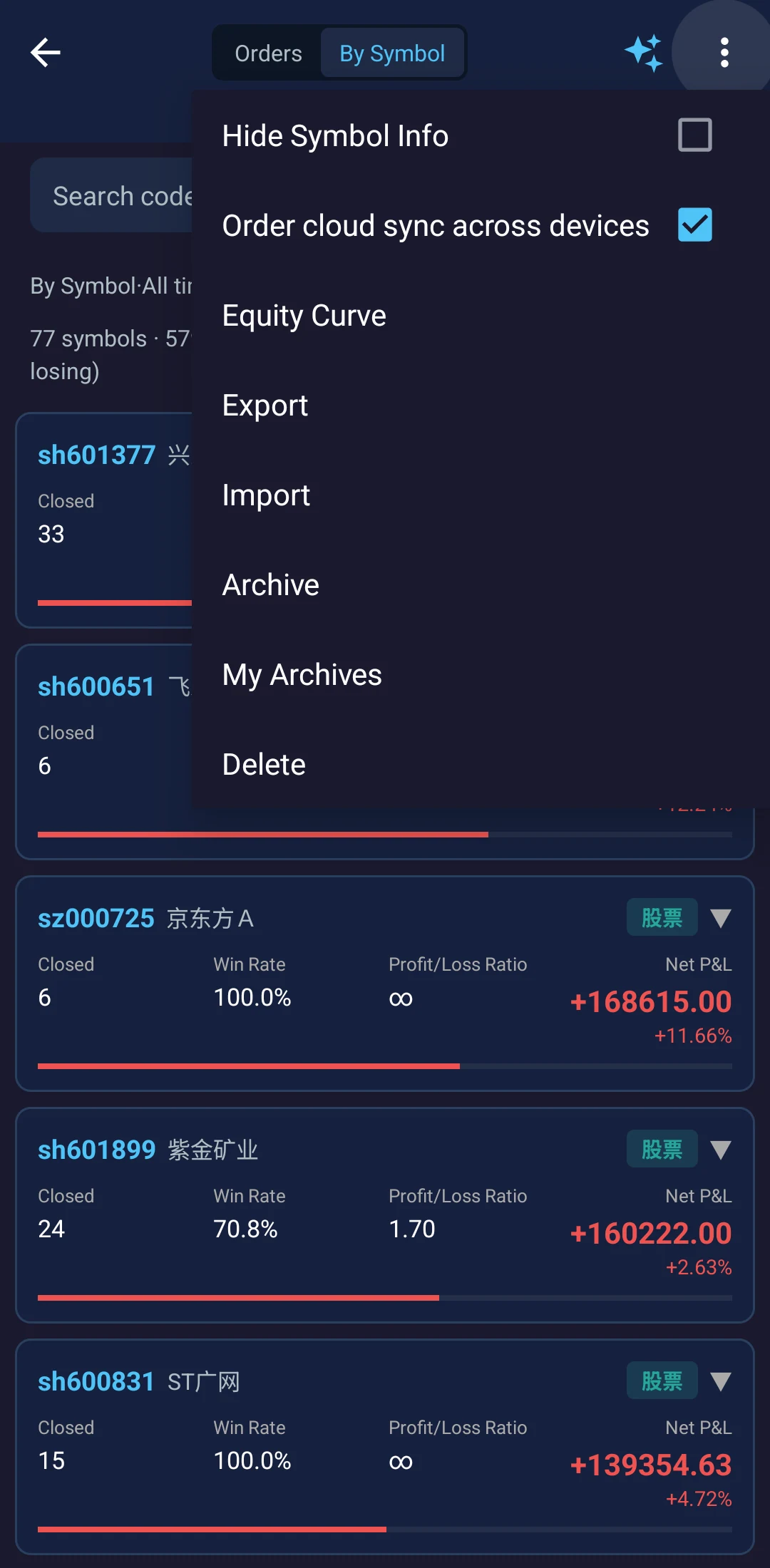
Tap the three dots in the upper-right corner of Order History, then choose Order cloud sync across devices. A check mark indicates that sync is enabled.
Check replay progress before switching devices
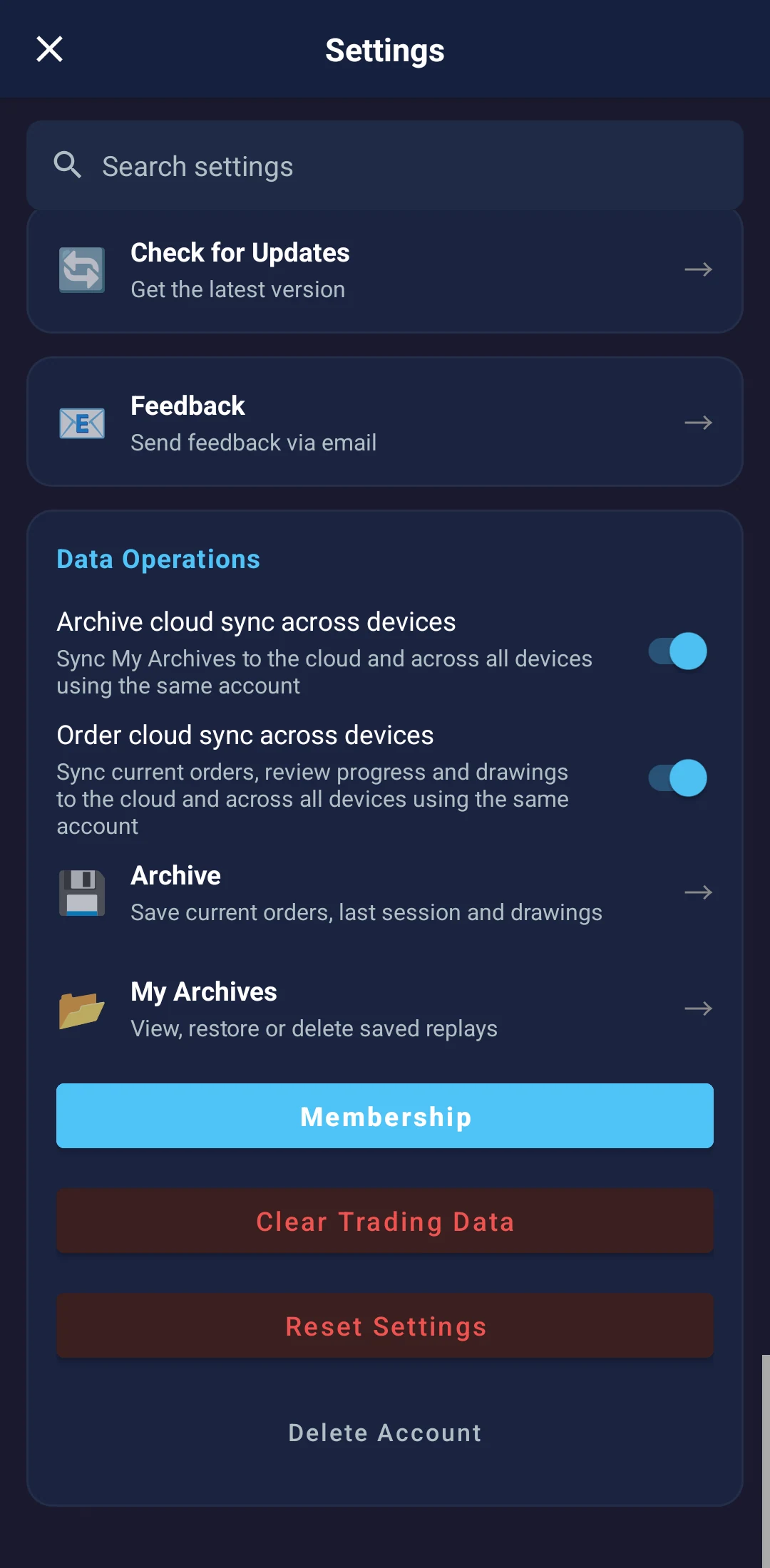
Order sync includes the current orders, replay progress, and drawings. You can check the switch in Settings. If sync is in progress, let it finish before switching devices, then check the latest replay position on the other device.
Choose the workspace if a conflict appears
Check the device, order counts, and update time shown in the prompt. Choose Keep this device to upload and continue with this device’s workspace, or Use cloud to load the cloud workspace. The prompt explains how the replaced data will be archived. Choose Later if you need time to decide.