
Write trade notes and inspect chart markers
Keep the reason for an entry or exit with the order and check its markers in the chart.
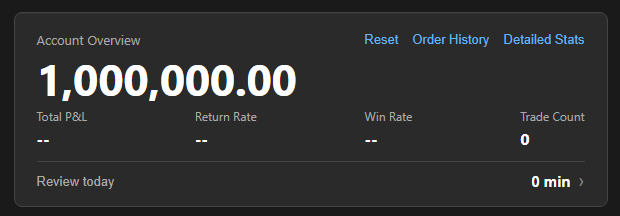
Open Order History from Home
Click Order History at the top right of the Account Overview card on the left of Home.
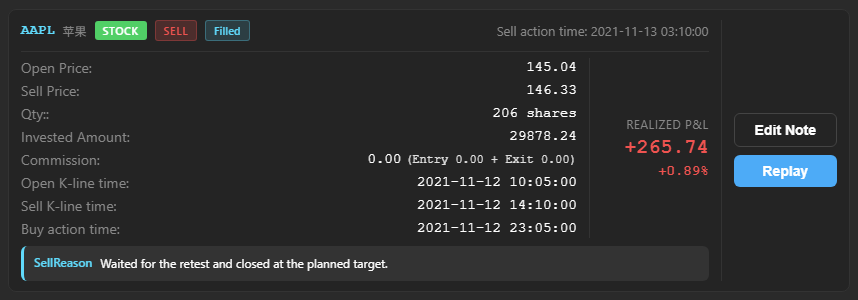
Choose a trade to annotate
Above Replay, click Add Note, or Edit Note if the trade already has one.
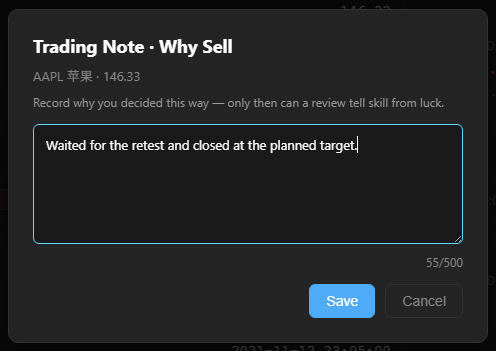
Write a rule you can check
Save the entry signal or exit rule, then use a phrase from the note to find the trade later.
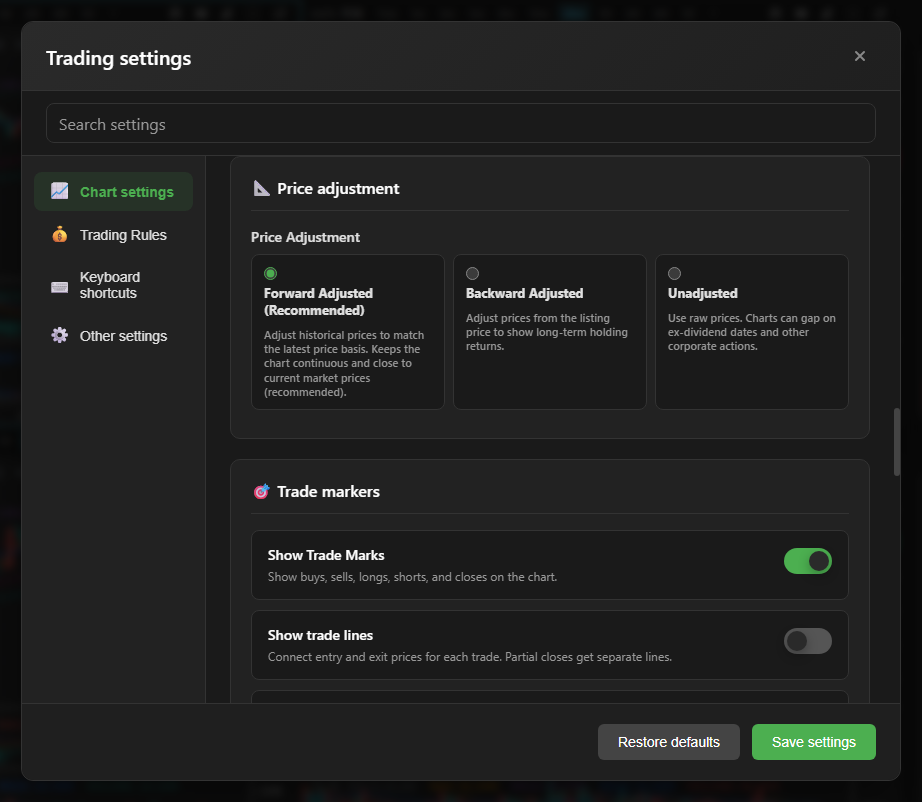
Check the markers and trade lines
Open Replay from the trade and enable markers or trade lines under Trade Markers in chart settings.
Walk through a practice sessionSave, preview and restore a replay archive